Check out the full video tutorial here.
Before you start, make sure you have an invoice to return against.
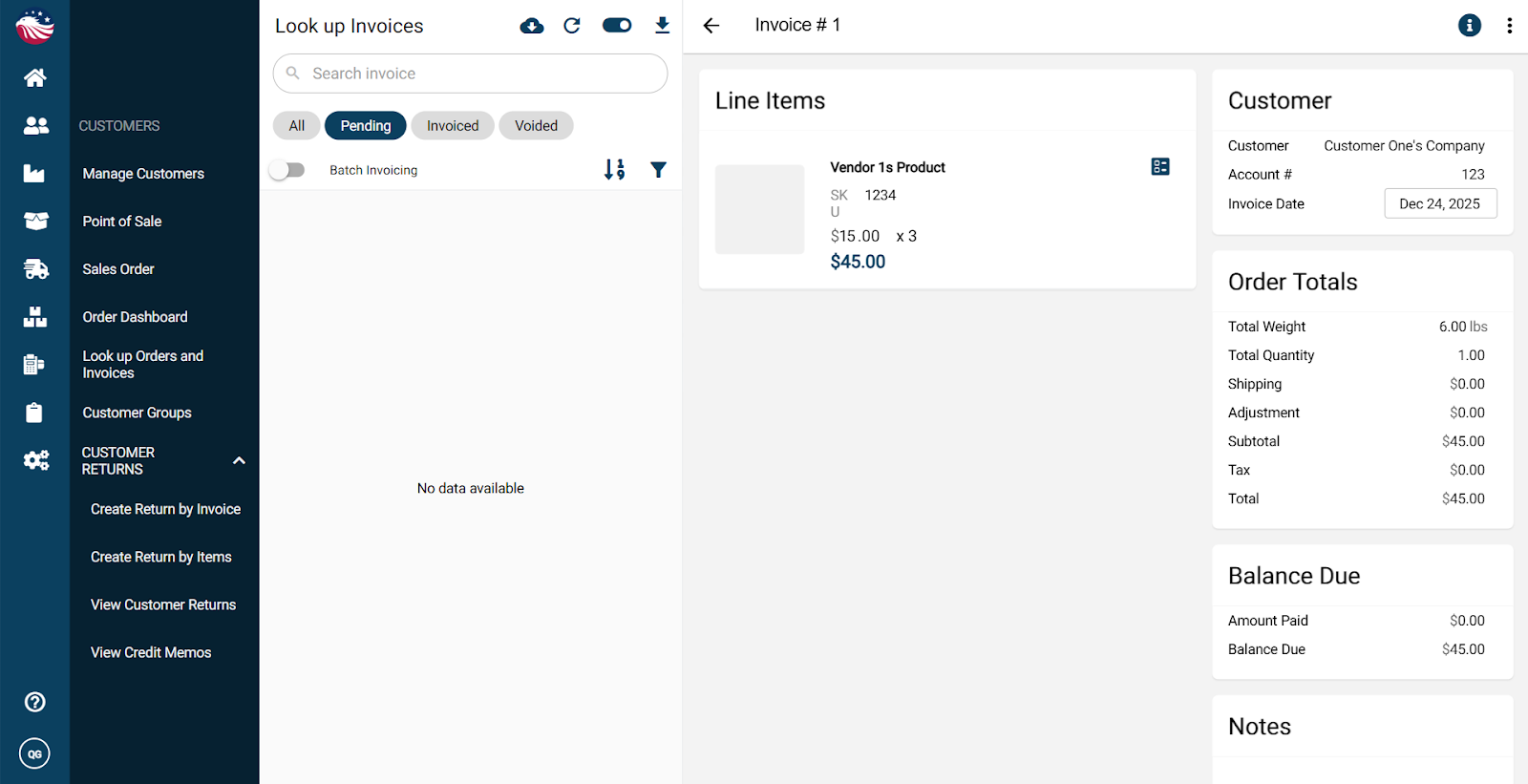
Navigate to Customers > Look Up Orders and Invoices
Toggle to Look Up Invoices
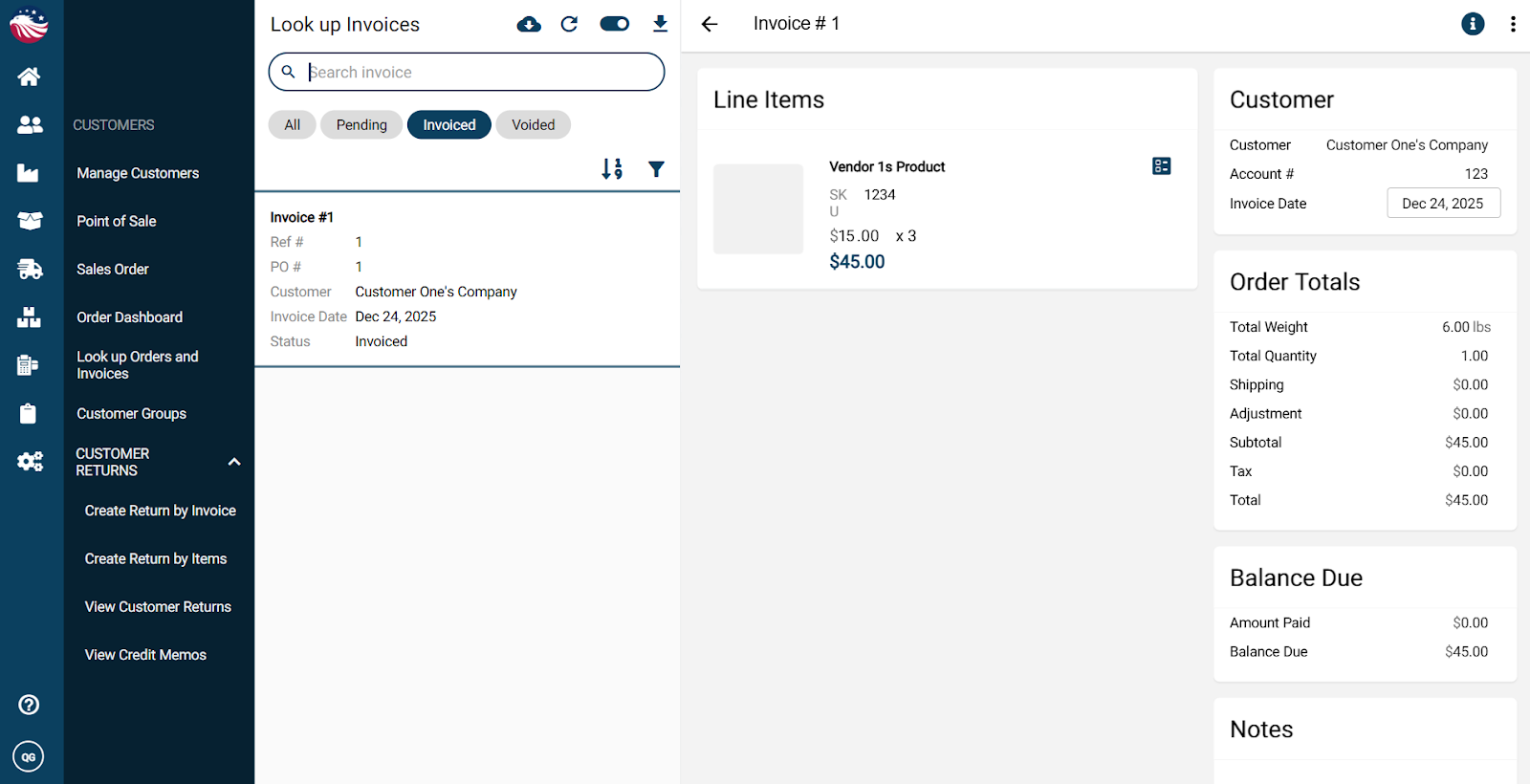
Confirm the invoice status is Invoiced
Navigate to Customers > Customer Return
Choose Create Return by Invoice (or by Item if that’s better for your case)
Select the invoice, then select the item(s) to return
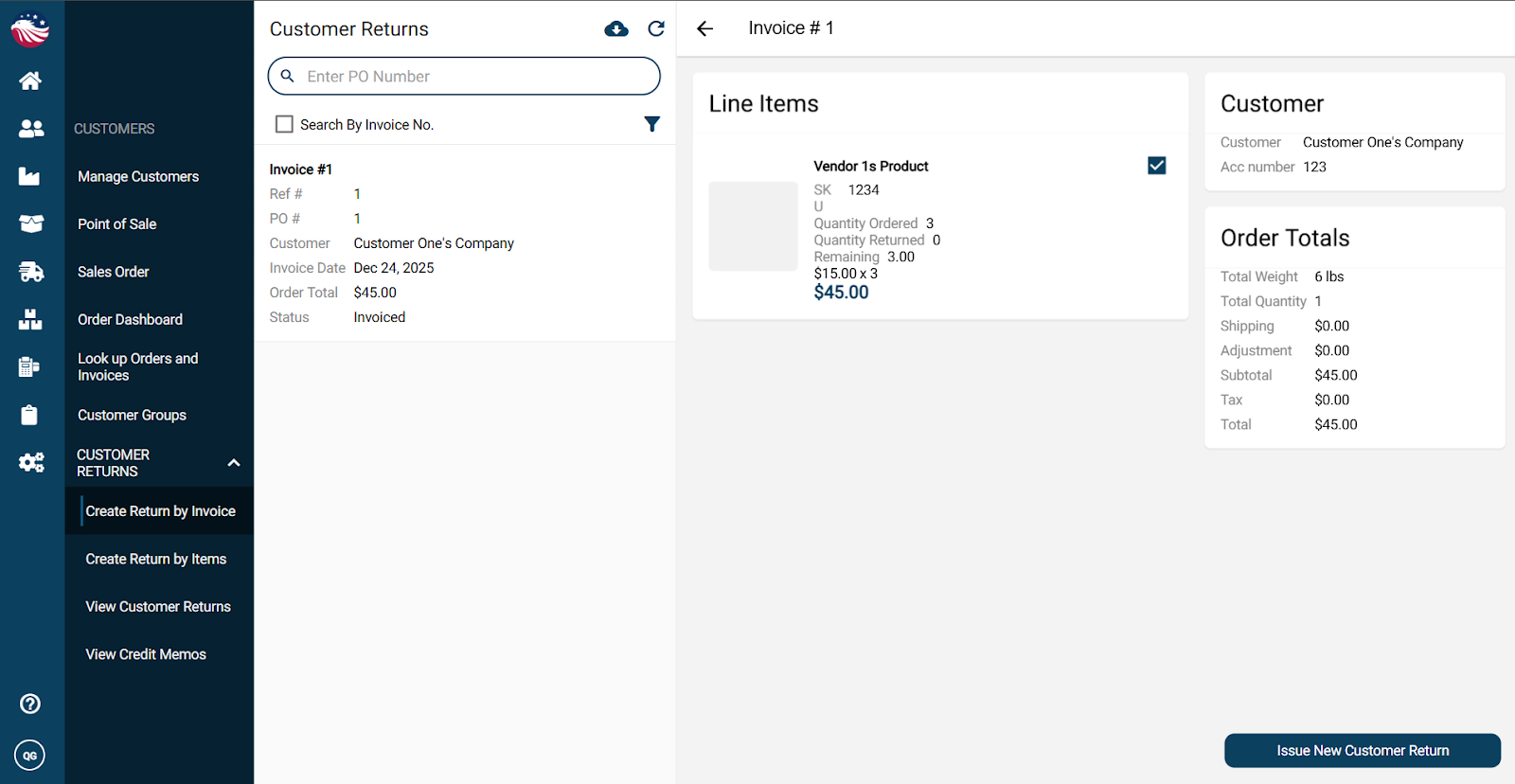
Click Issue New Customer Return
Fill out the return details:
quantity
credit or replacement
reason
any notes you want saved
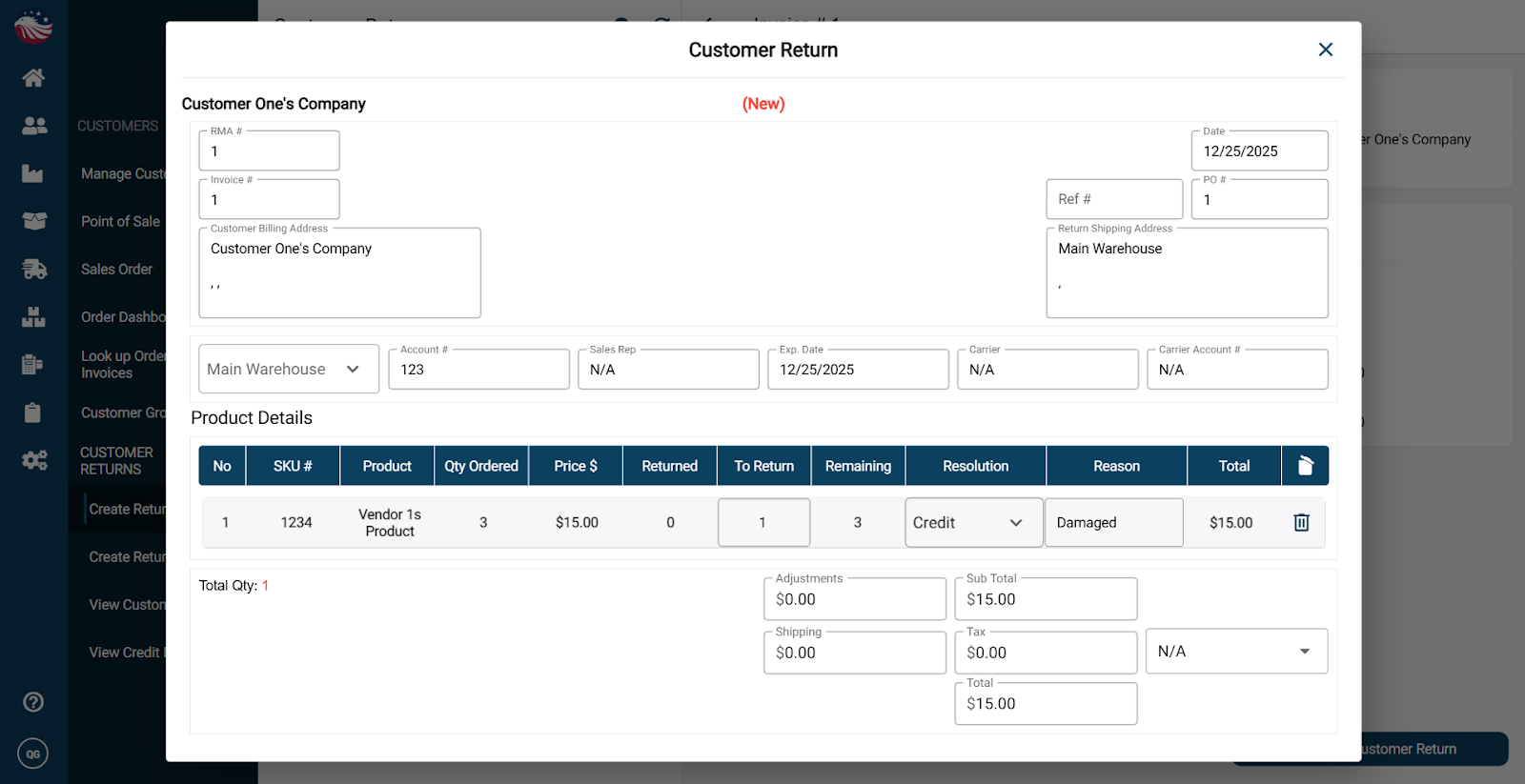
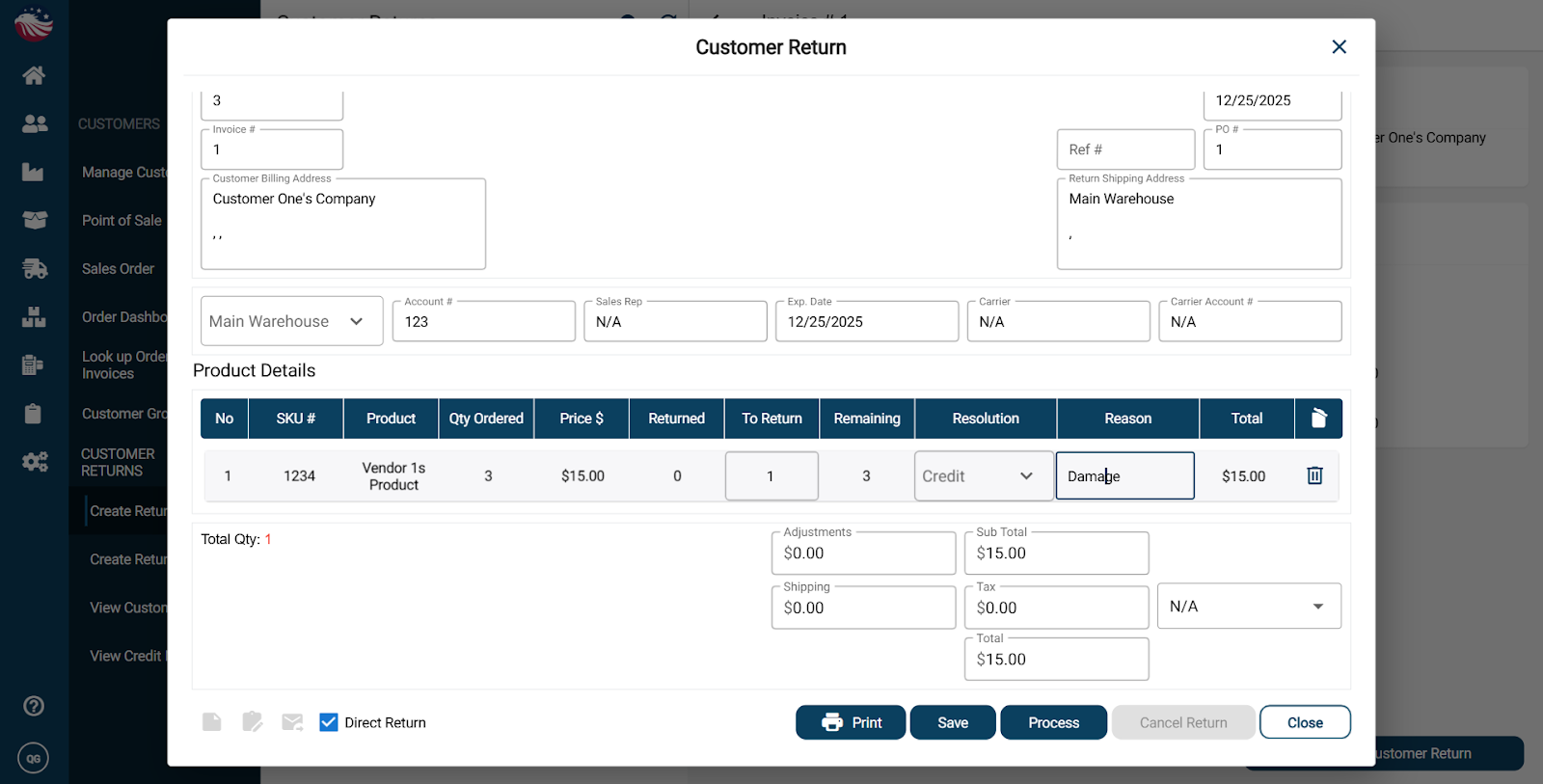
Scroll down to and check the Direct Invoice box and then hit Process
Direct Return option: If you select Direct Return, you skip approval and immediately add the returned items back into stock. For our example, we’re going to have Direct Return checked. We cover non-direct returns in a later guide titled: Handling Returns & Credits.
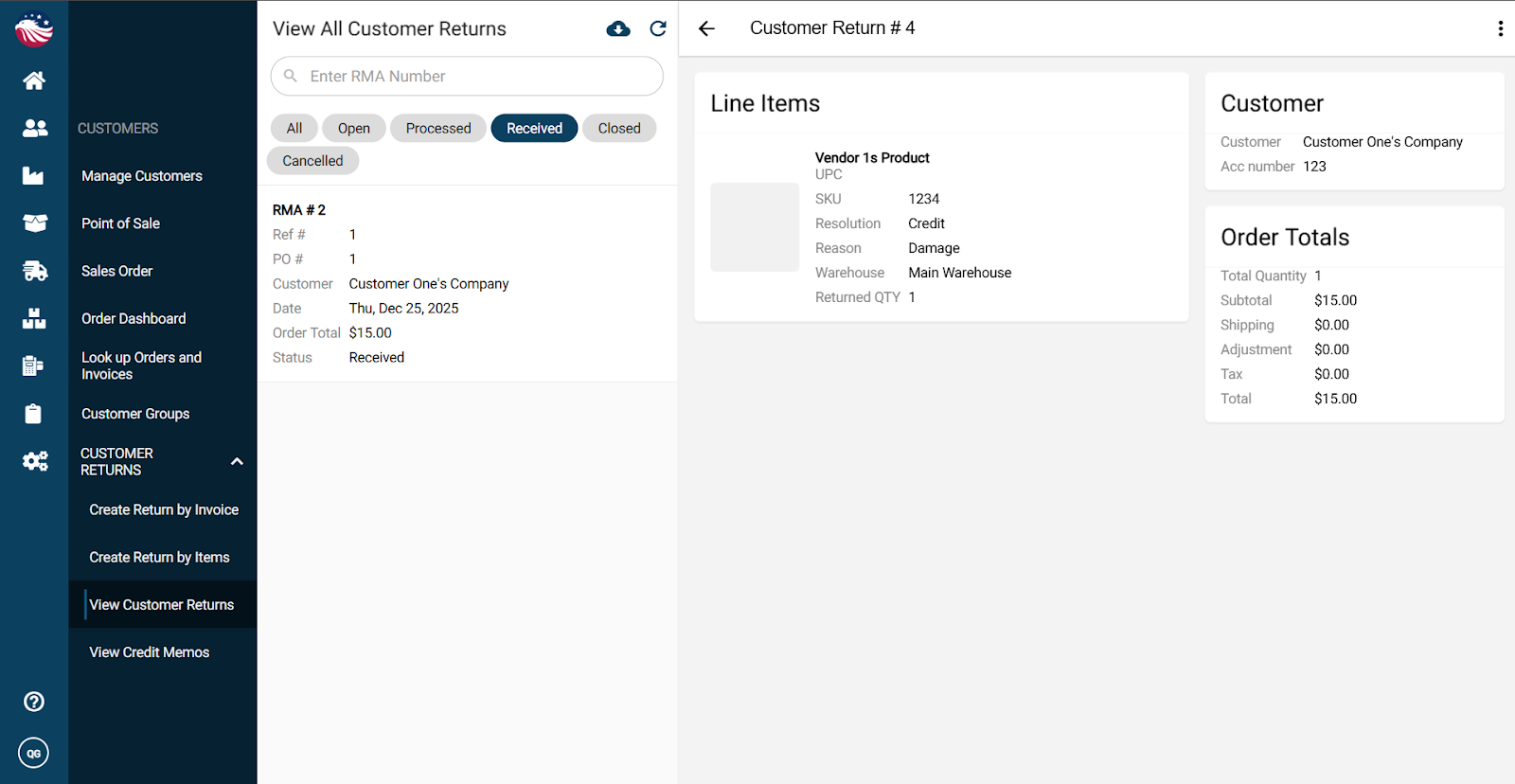
To view this Customer Return:
Navigate to View Customer Returns
Filter by Received
This also creates a credit memo:
Go to the credit memos screen and filter Pending Credit Memo
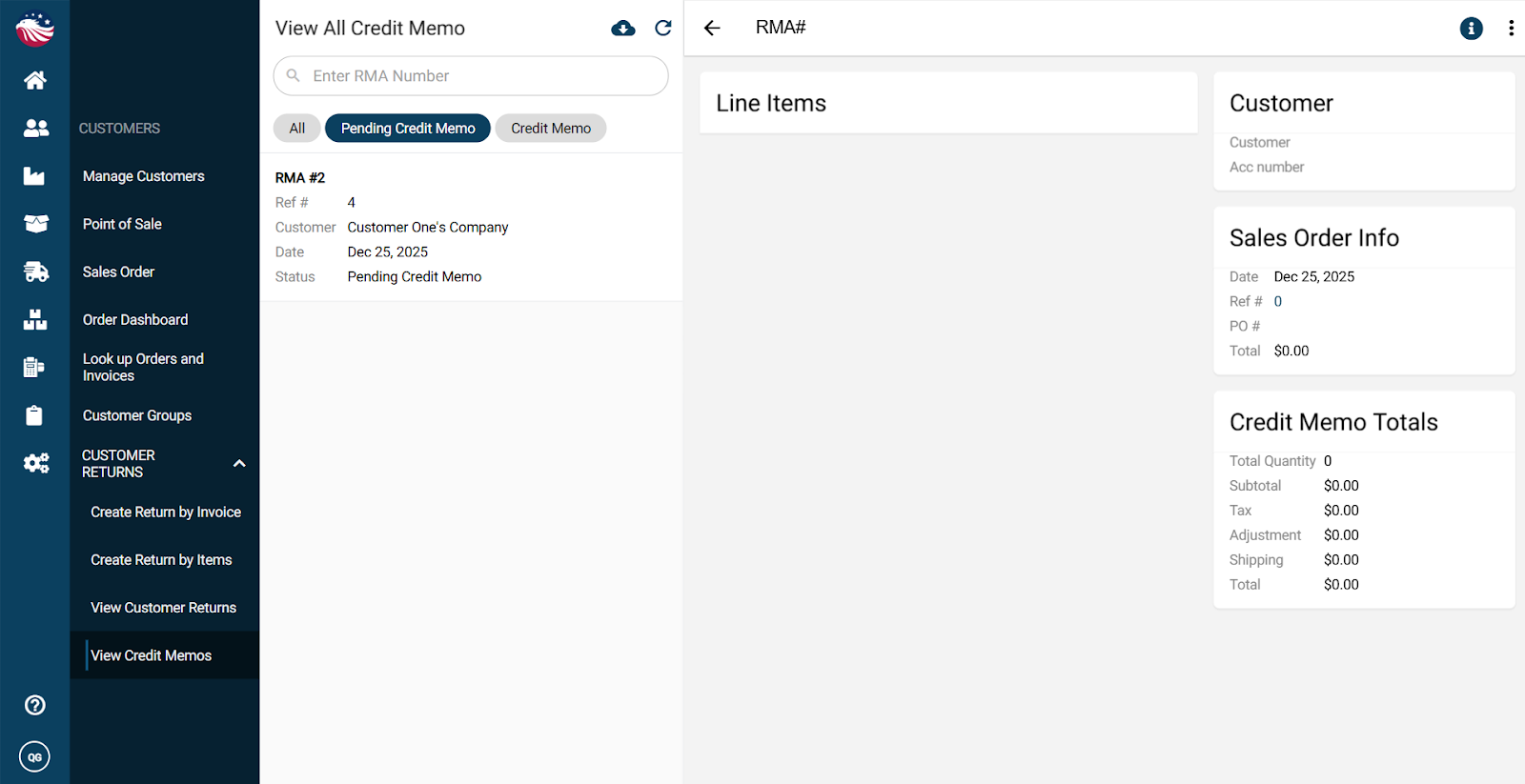
Select the memo and click Process Credit Memo to finalize the credit memo
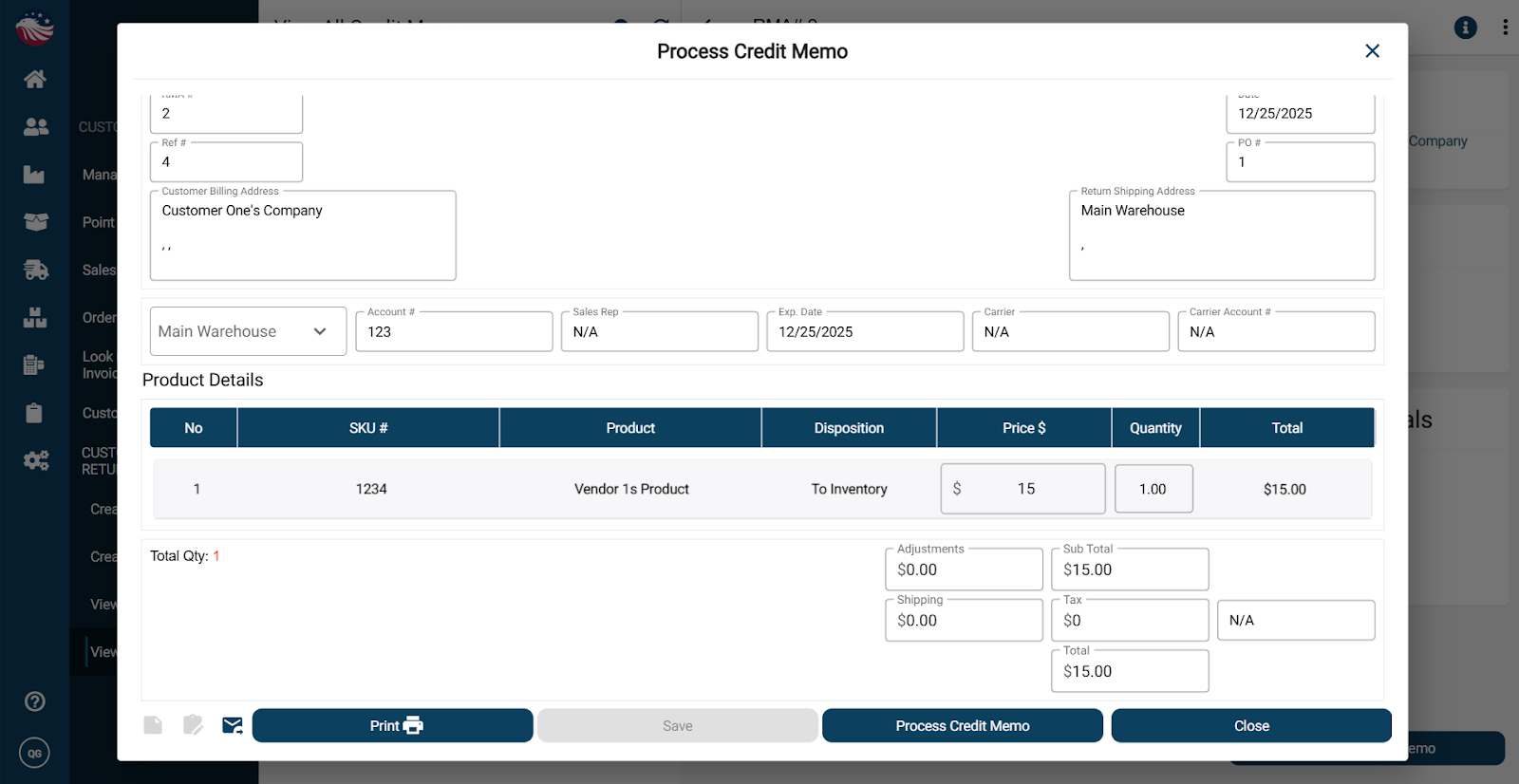
Confirm and process
You can also see the return reflected in product history:
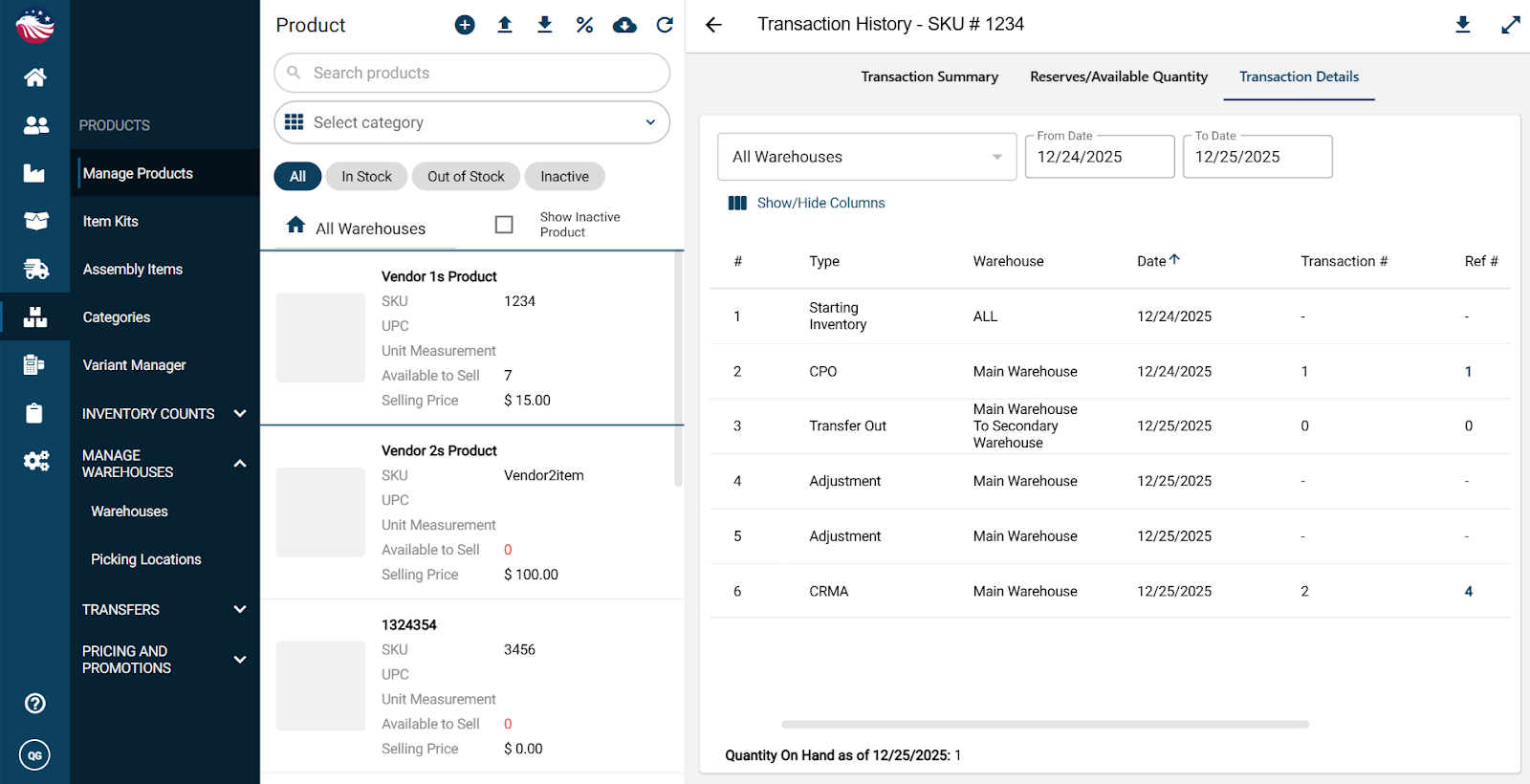
Products > Manage Products, select the product that was returned and hit the eye icon on the top right
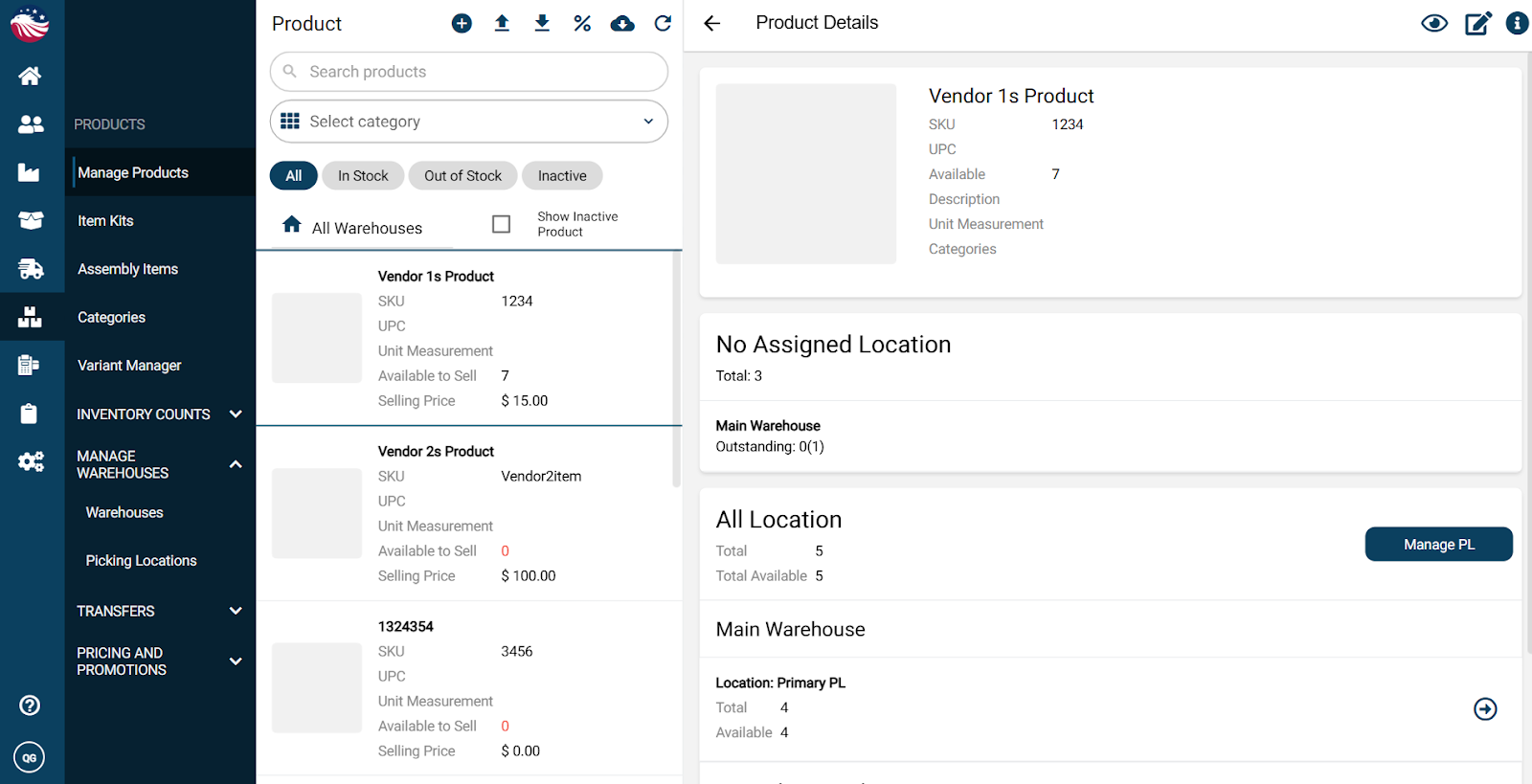
Transaction details will show it as a CRMA (Customer Return Merchandise Authorization)