Go to Vendors > View Vendor Orders to see the purchase order.
Click on the three dots in the corner and select Process Order to set it as a To Receive order on your inbound orders.
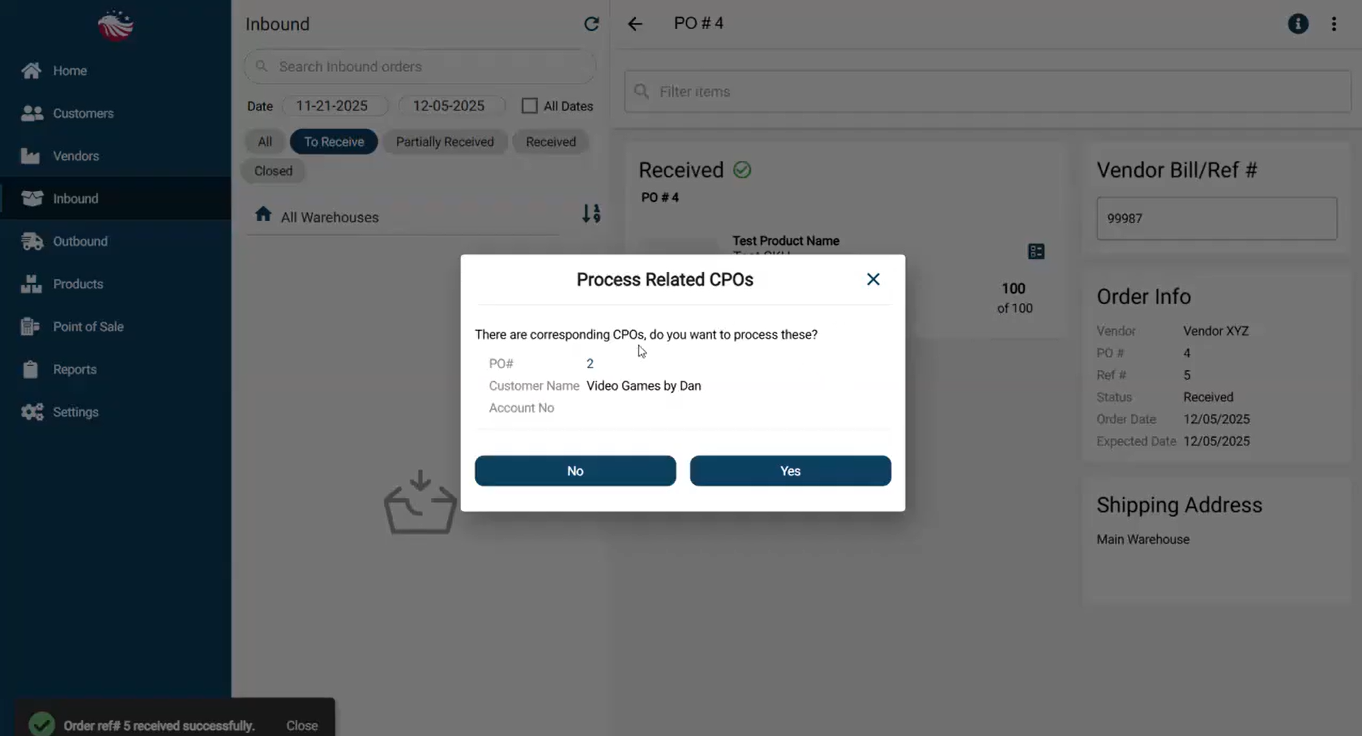
To receive it, go to Inbound > Inbound Orders, receive the items by adding the quantity, entering in the SKU, or scanning the barcode.
Enter in the Vendor bill # then hit Receive.
Important: The system will pop up a message recognizing this is for a customer. It will ask to reserve the product for that specific Sales Order. Click Yes.
Your product is now in Outbound status, with the status To Pick, ready to be picked, packed, and shipped to your customer!