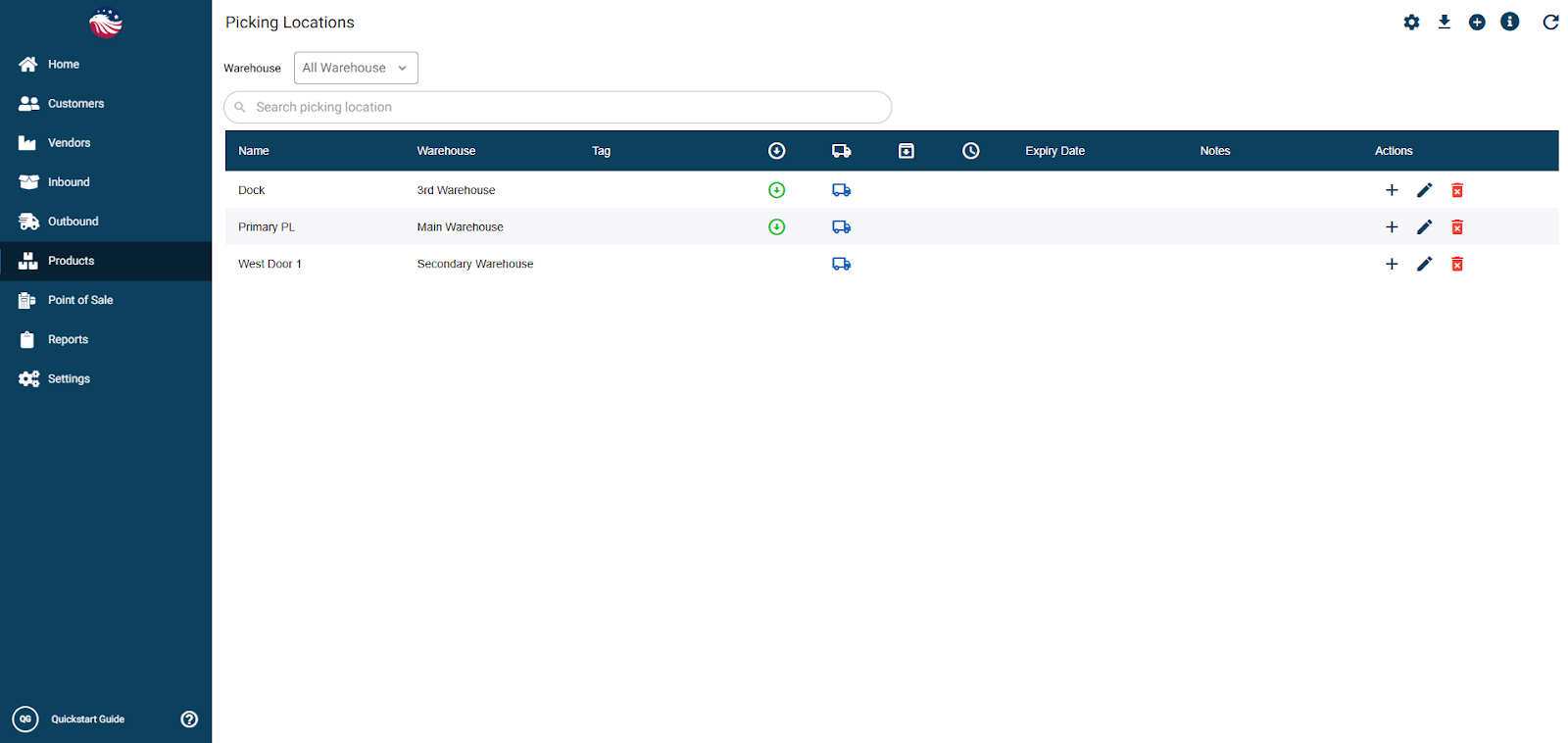
Click Products > Manage Warehouses > Picking Locations .
Hit the (+) Plus Icon in the top right.
Select the Warehouse, name the location (e.g., "Dock"), and choose the type (Receiving, Shipping, Storage, or Temporary).
If it’s a temporary warehouse, enter in the expiry date.
When you’ve filled in all the relevant information, hit Proceed, then Add Location to save this picking location to your warehouse.
Bird’s Eye View: Eagle Inventory needs every warehouse to have at least one picking location, so even if you don’t plan on using picking locations, it’s important to assign at least one picking location for each warehouse.