Stop shutting down for a week to count inventory. Do it as you go.
Go to Products > Inventory Counts > View All.
Start a New Inventory Count using the Plus icon at the bottom of the screen.
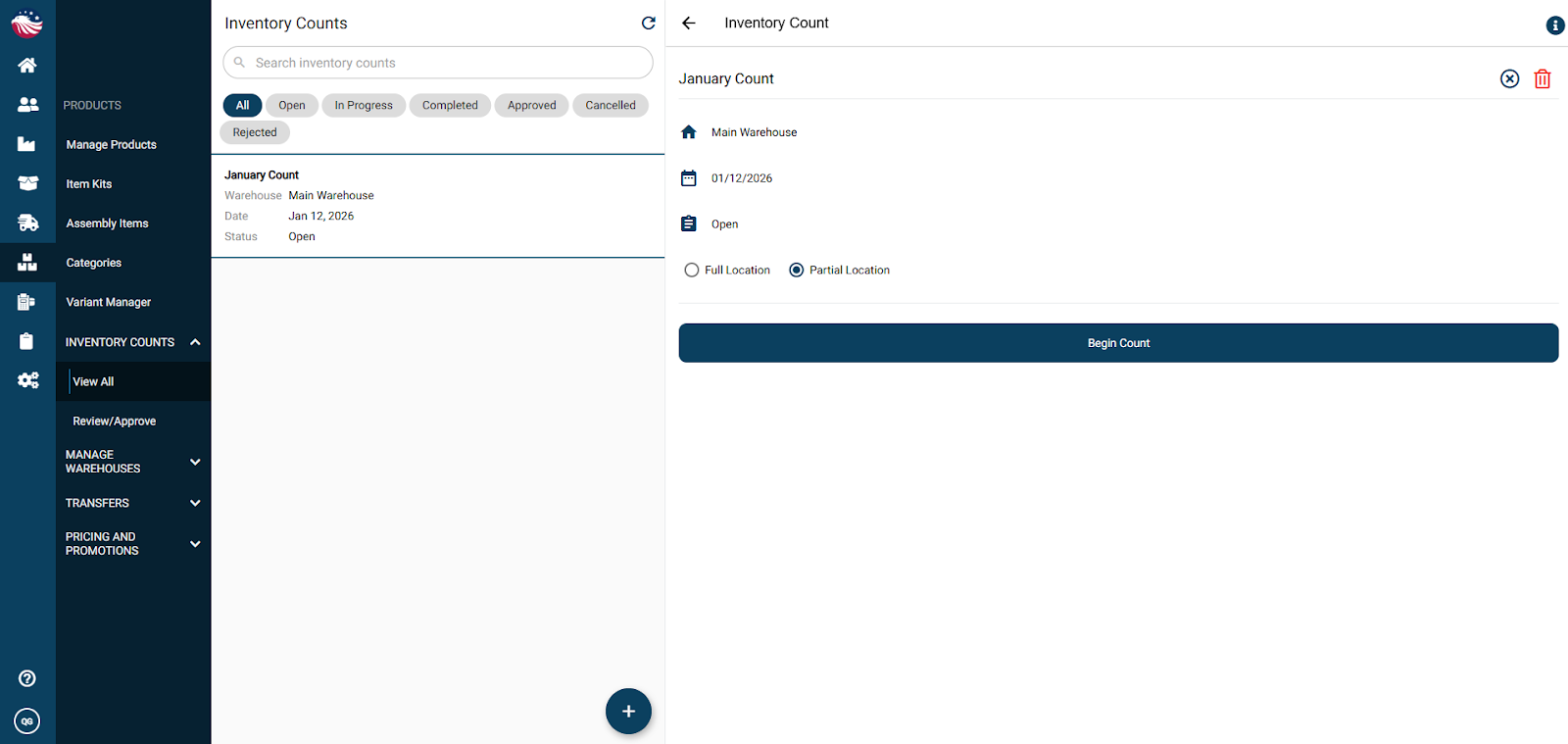
Choose Type:
Full Location Count: You must count everything. Anything not counted becomes zero.
Partial Location Count: Only updates the specific items you count.
When you’re ready, hit Begin Count.
Count: Select a picking location and enter the quantities you physically see.
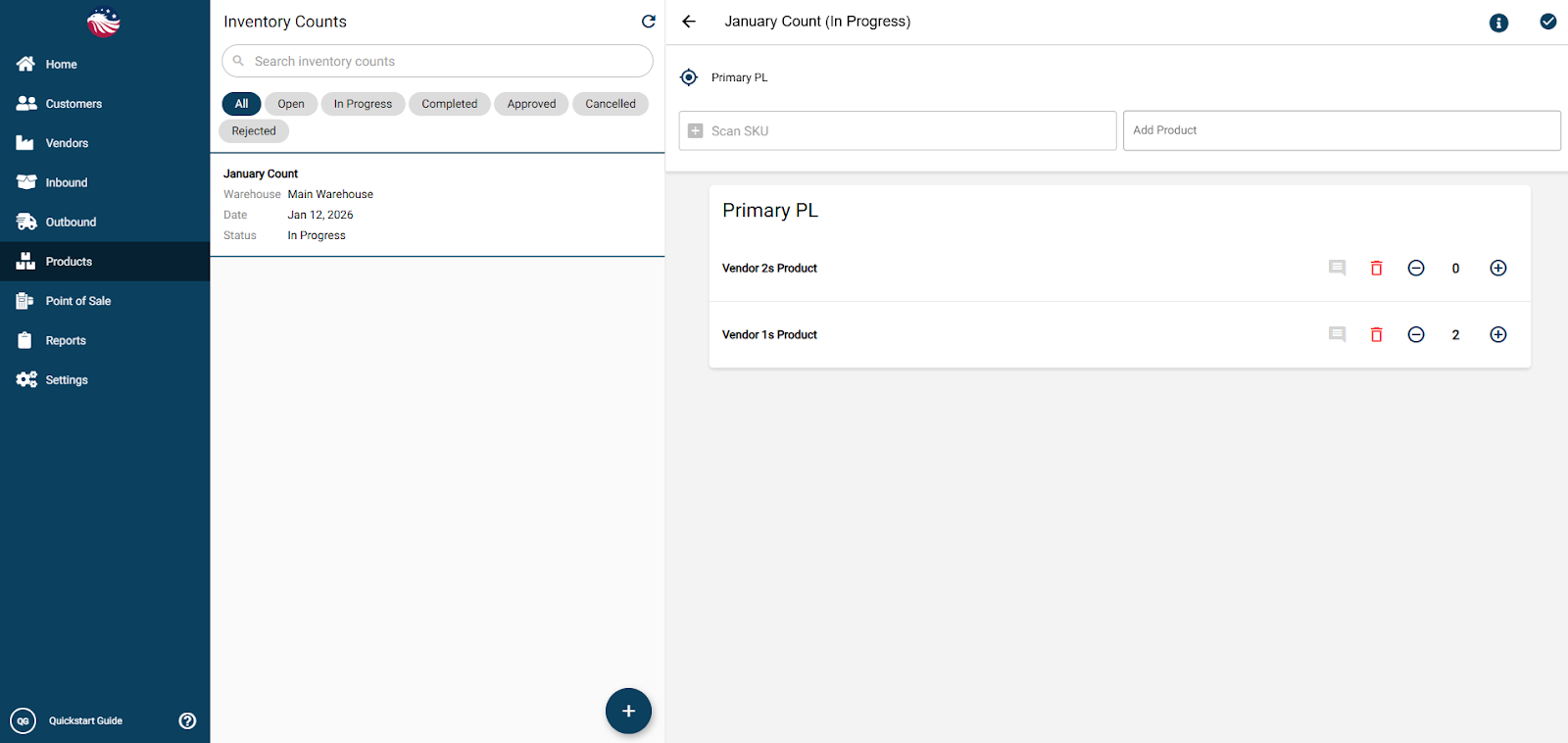
Add products by either scanning their SKU, manually entering the SKU, or using the Add product dropdown list on the right.
This is a blind location count, you’re simply entering in what you see, not knowing what quantities are or aren’t supposed to be there.
When you’re done, hit the checkmark in the top left corner.