Someone from the administrative team can now come and review and approve the inventory count.
Go to Products > Inventory Counts > Review/Approve.
Select the completed count, and use the scroll bar to see all the columns. You can also click the Expand button in the top right to make the inventory count larger.
Review:
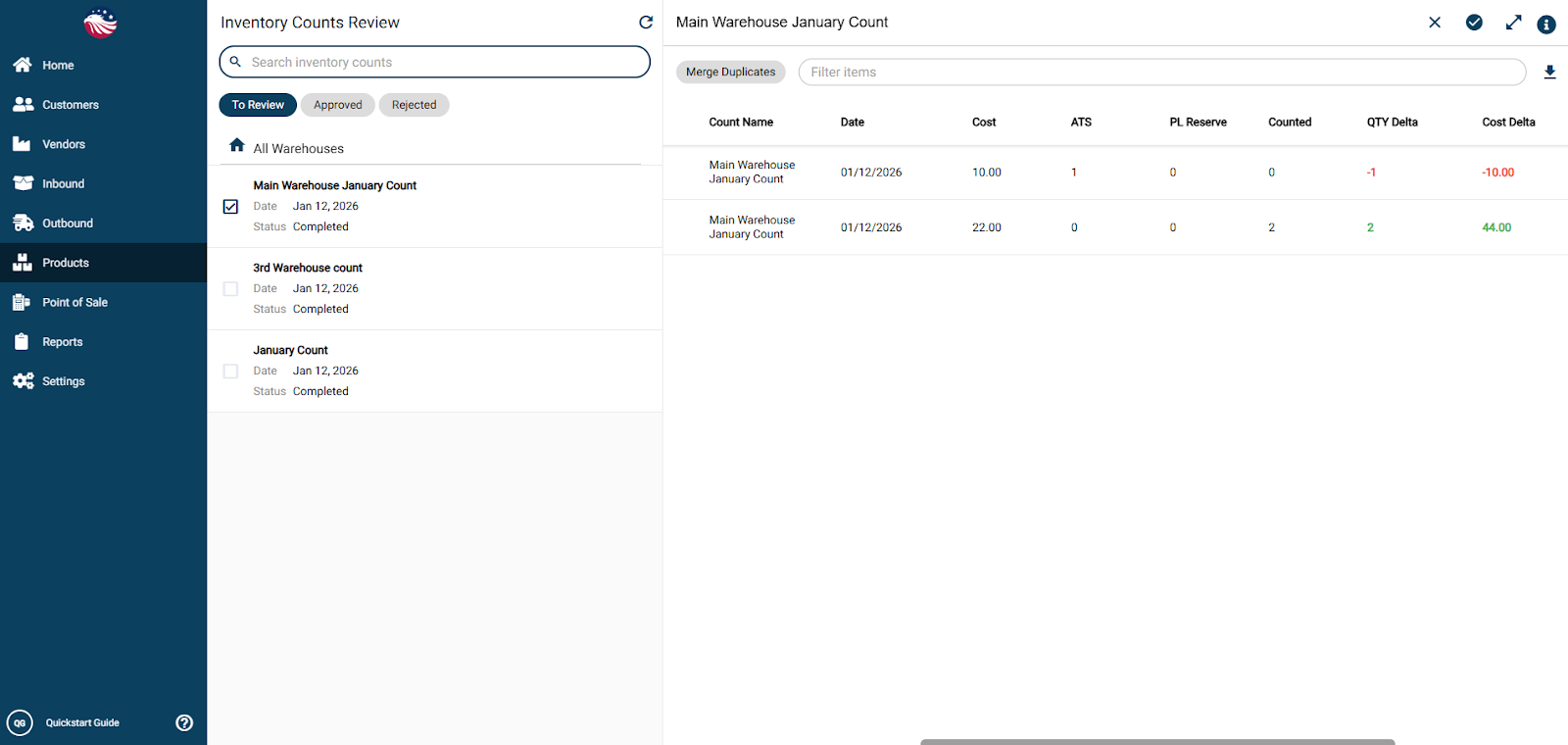
Green Numbers: You have more than expected (Positive Delta).
Red Numbers: You are missing items (Negative Delta).
You can change the Counted column and add comments in the Comments column when reviewing the count.
You can either Reject or Approve the inventory count.
If you Reject the count by hitting the X in the top right corner, then you will be presented with options to Reject, Recount, or Cancel the inventory count
Reject – marks the status as rejected on the View All screen
Recount – marks the status as open on the View All screen
Cancel – marks the status as cancelled on the View All screen
If you Approve the count by hitting the checkmark in the top right corner then you will be able to give a reason for any inventory adjustments and hit Approve to push through any inventory level changes.