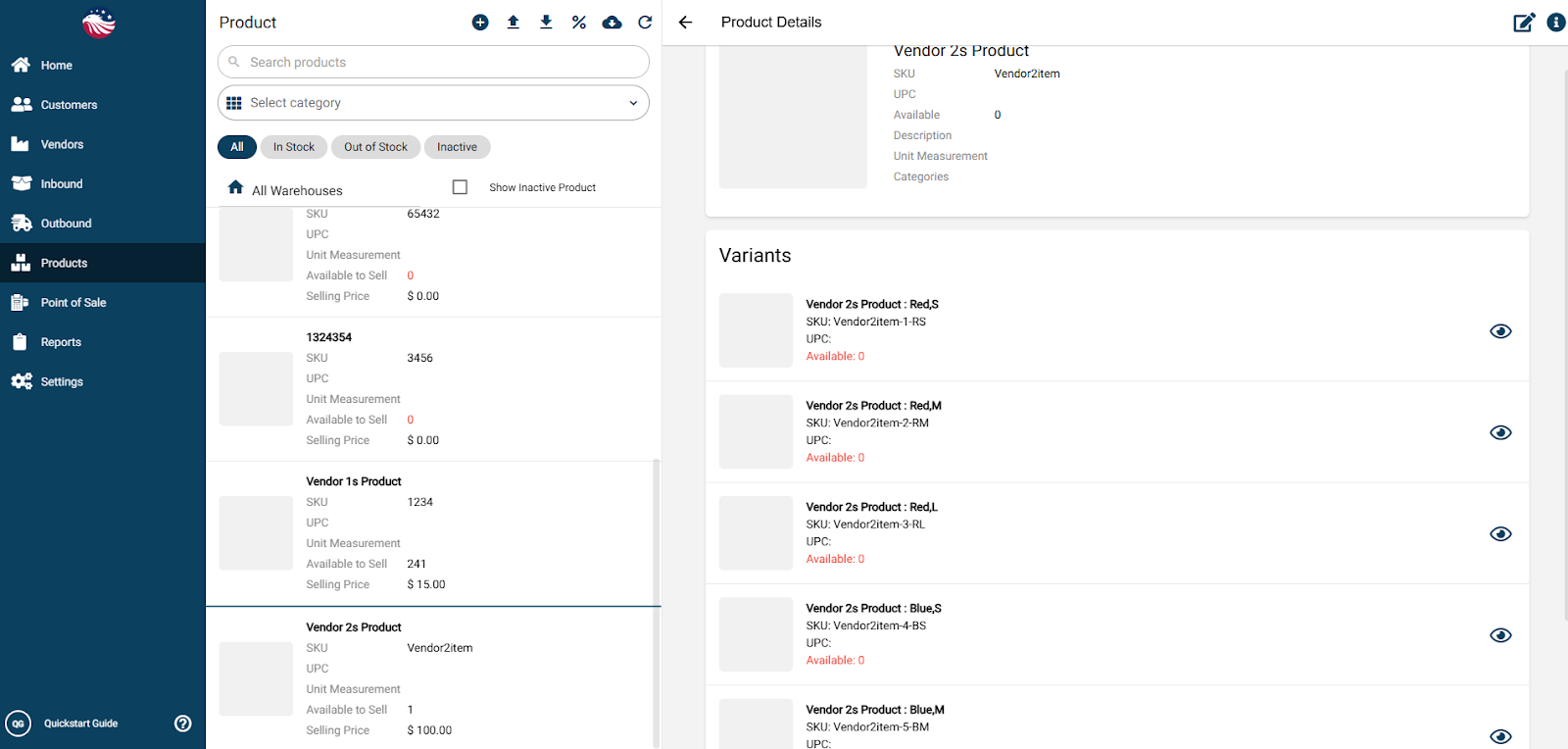
Selling T-Shirts? You don't need a separate product page for every color.
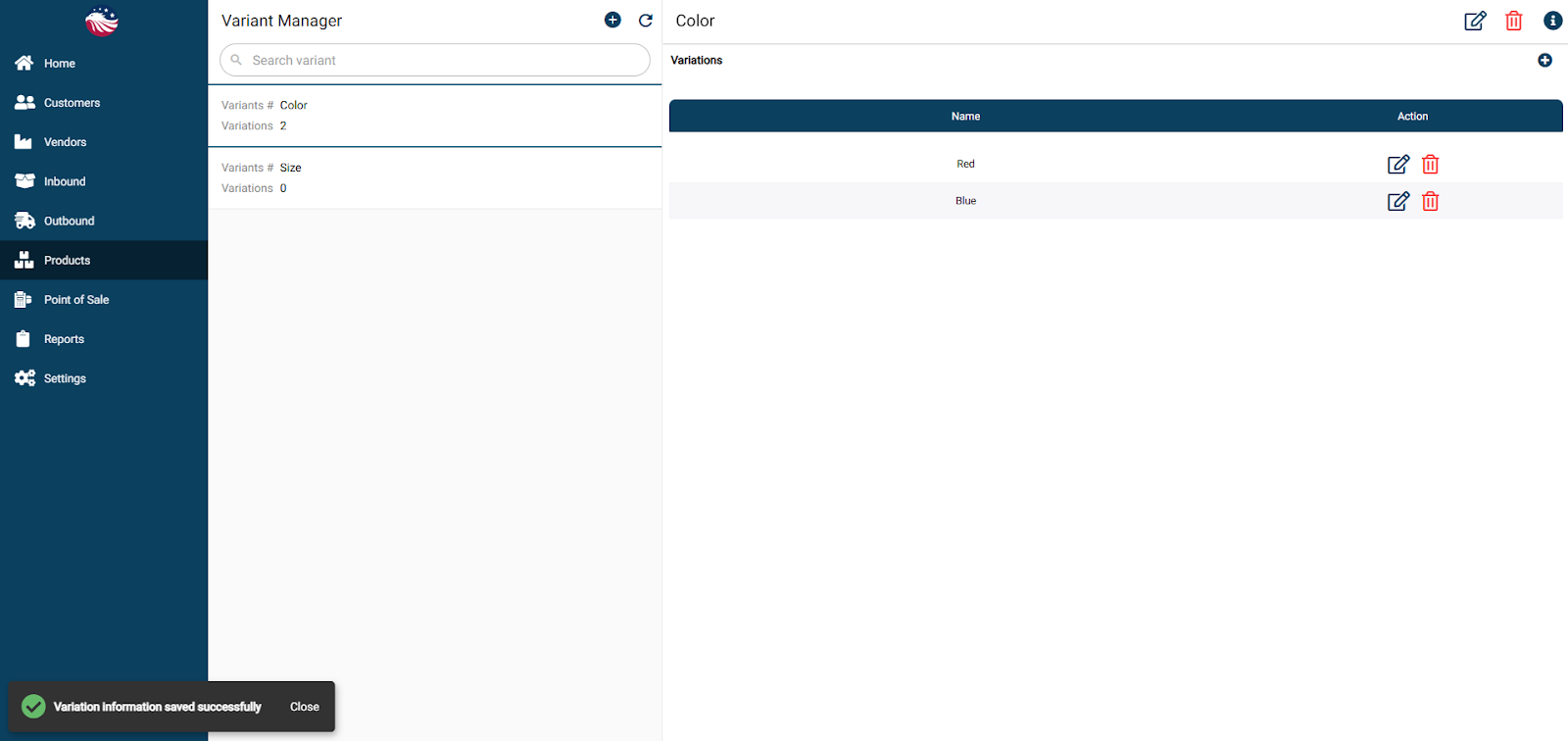
Go to Products > Variant Manager and then click on the Plus icon at the top middle-left of the screen beside the Refresh icon.
Create a Variant called Color.
In the top right corner, below the “i” is another Plus icon. Hit that to Add Variations (e.g., Red, Blue).
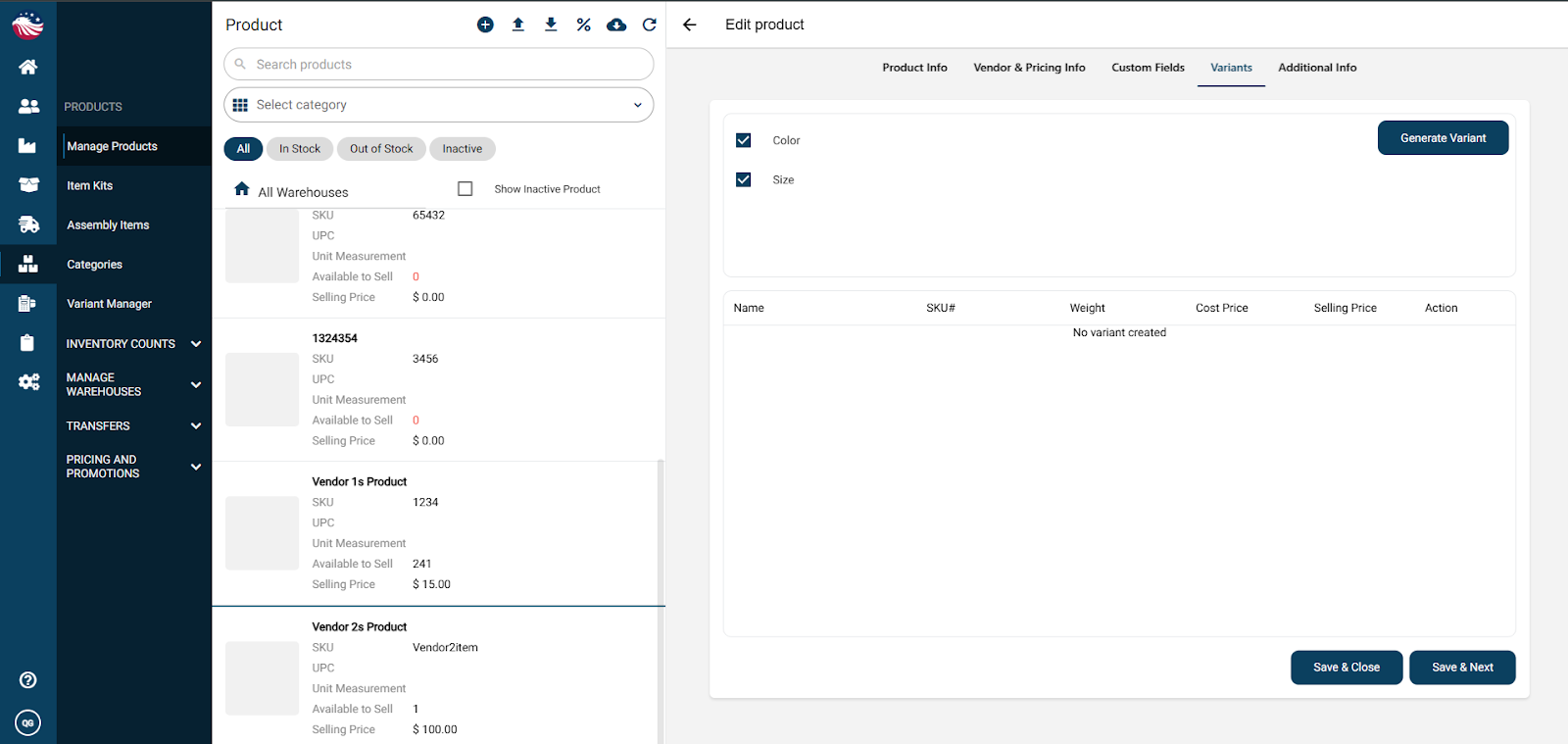
Now let’s apply this to a product. Go to Products > Manage Products and select the desired product which has variants. Hit the Pencil icon in the top right corner.
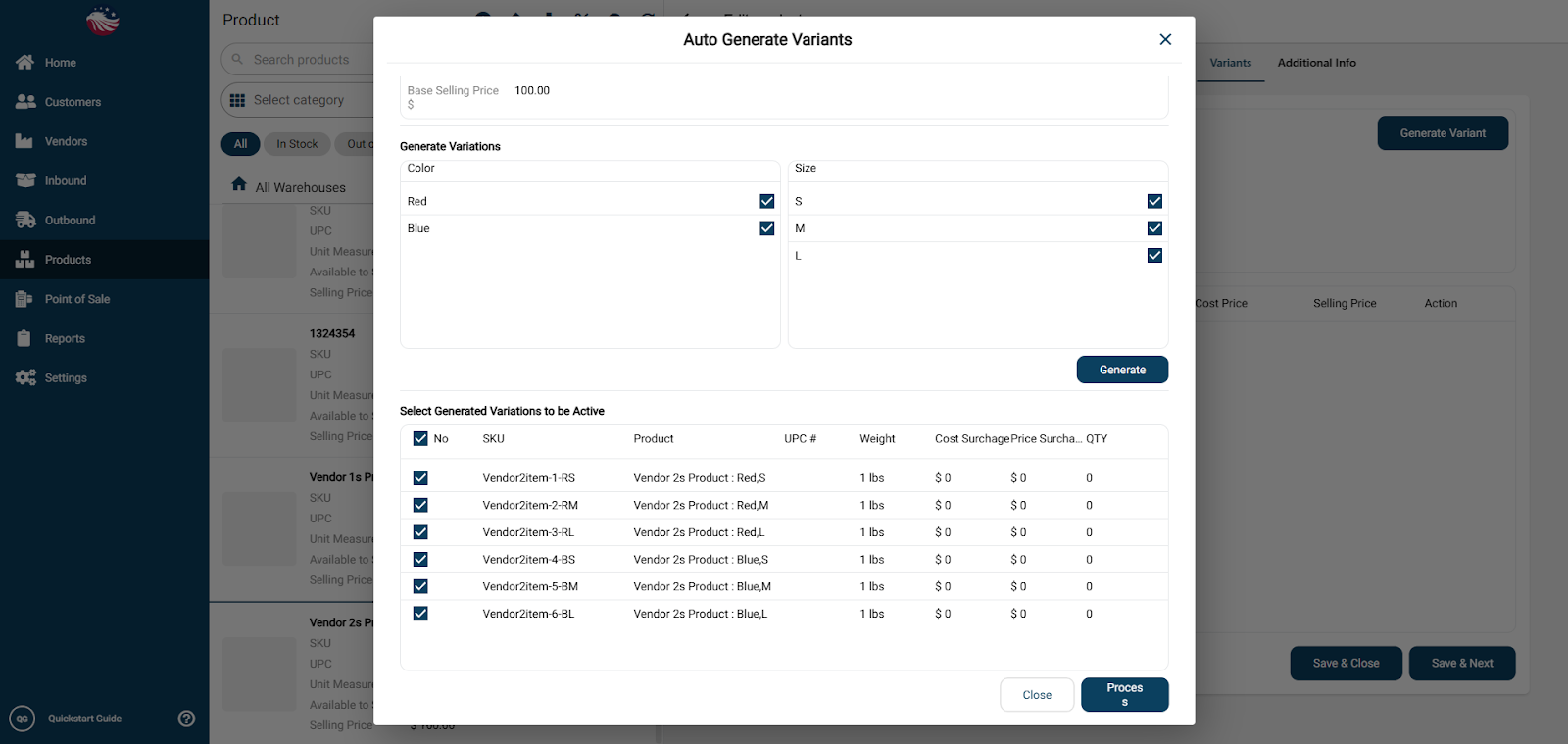
Hit the Variants tab and check the boxes for the variations of this product, then click Generate.
Select all variants that apply to the product, and hit generate.
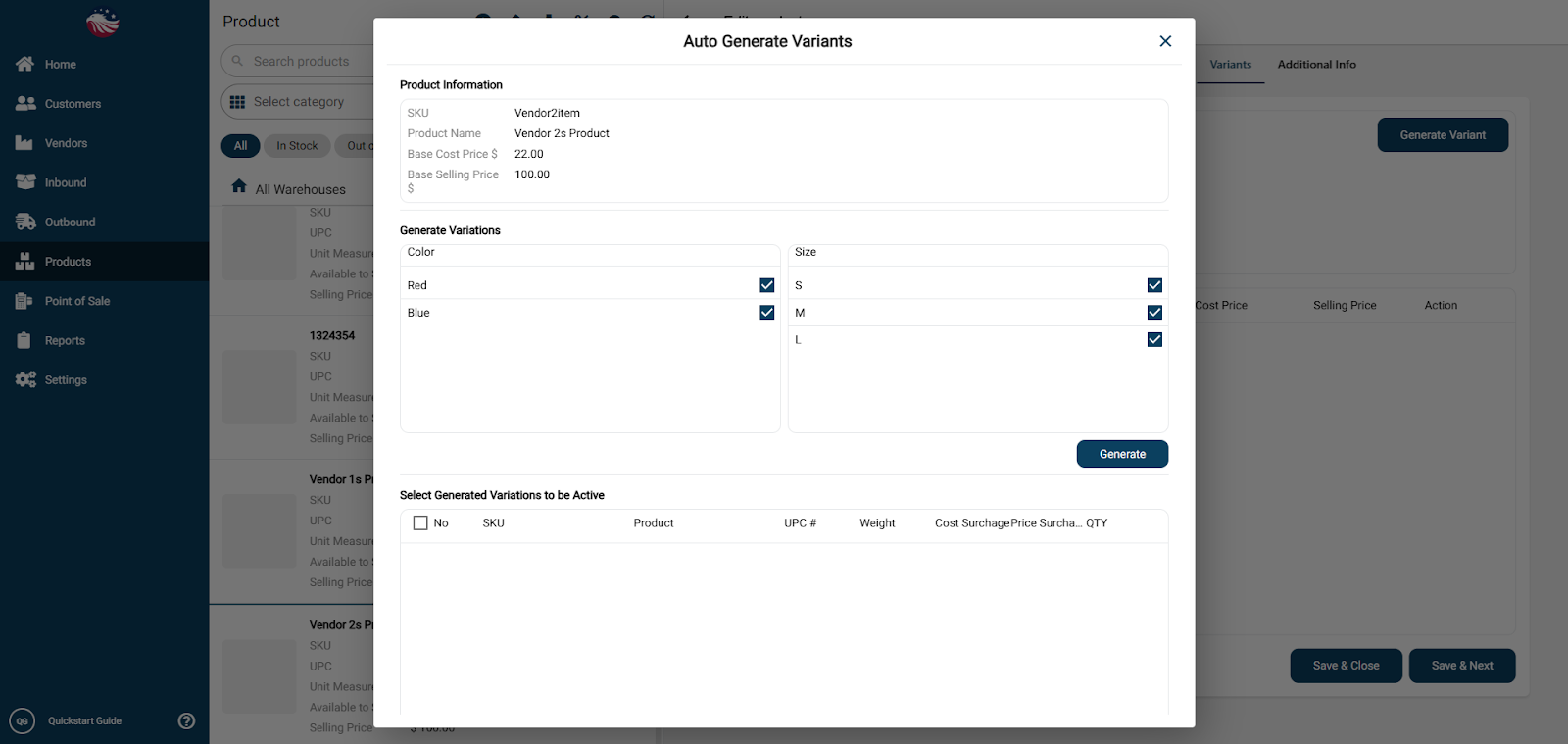
Select all the variations that you want to process. You can select all by hitting the checkbox in the header of the columns. Then hit Process.
To edit the price of a specific variant, click on the Pencil icon in that variant’s row.
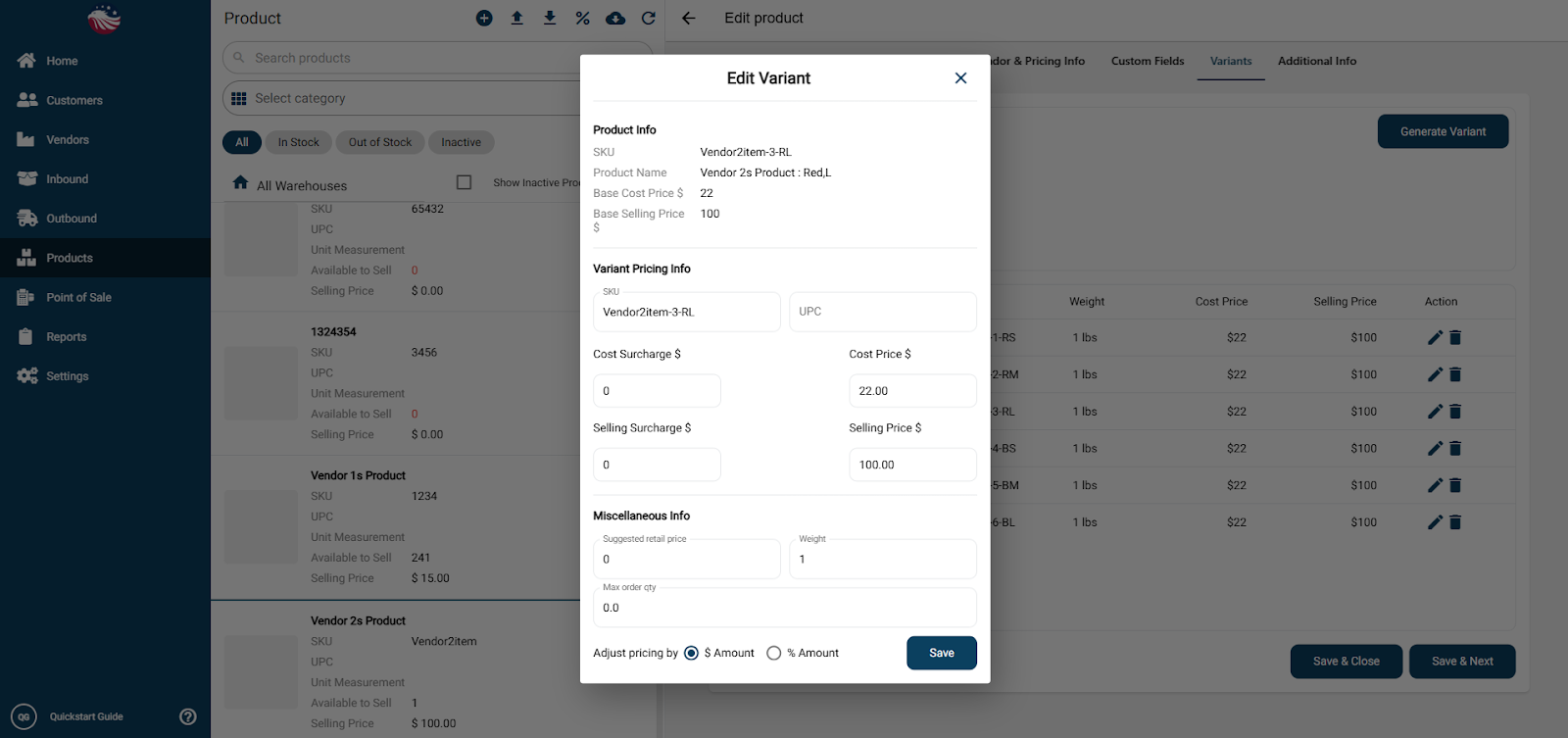
When you’re done hit Save & Close.
Now you can see all the variations of this product.