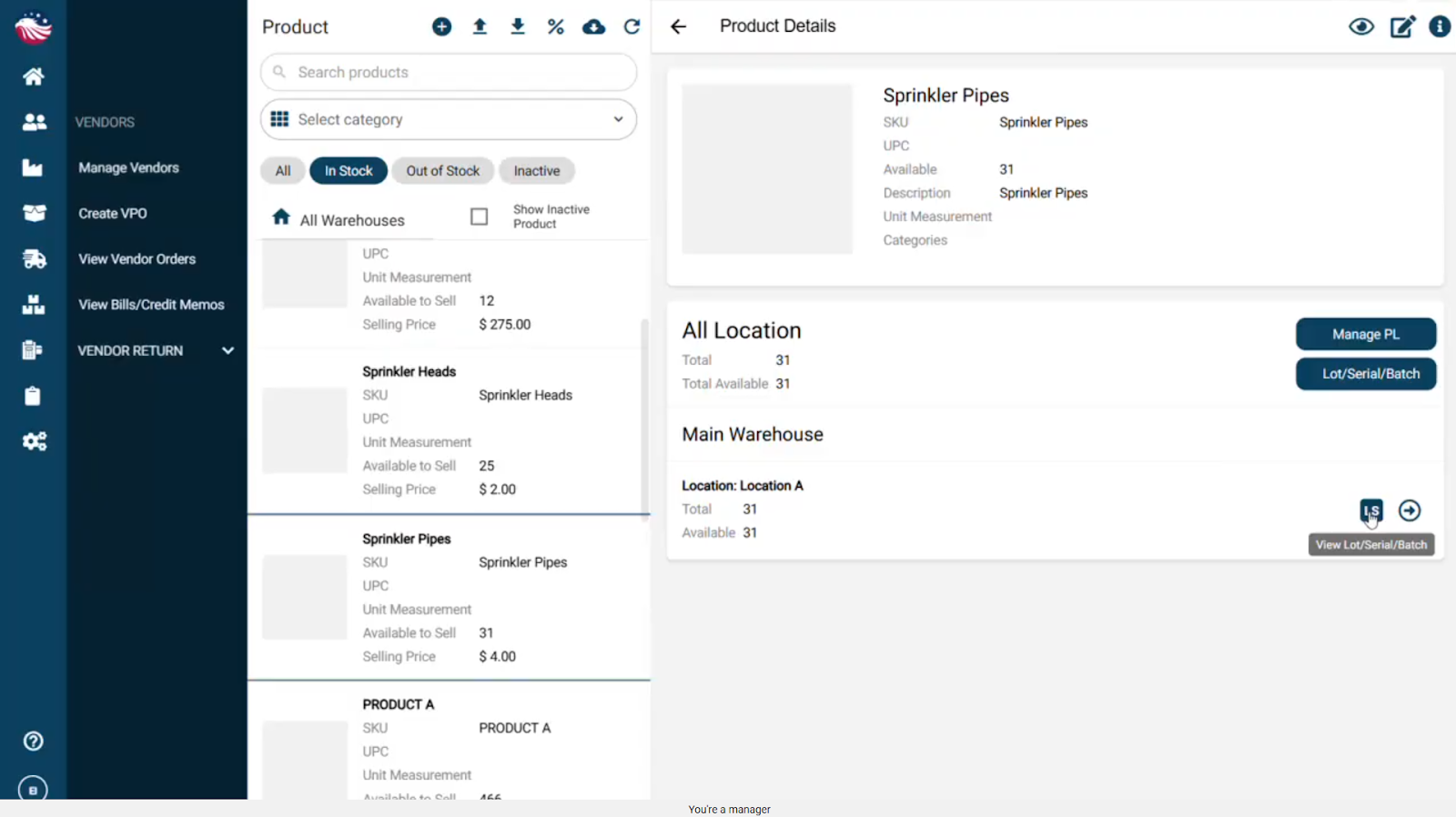
If you have inventory sitting on the shelf that needs serial numbers, follow this process:
On the Product page, click the Lot/Serial/Batch button.
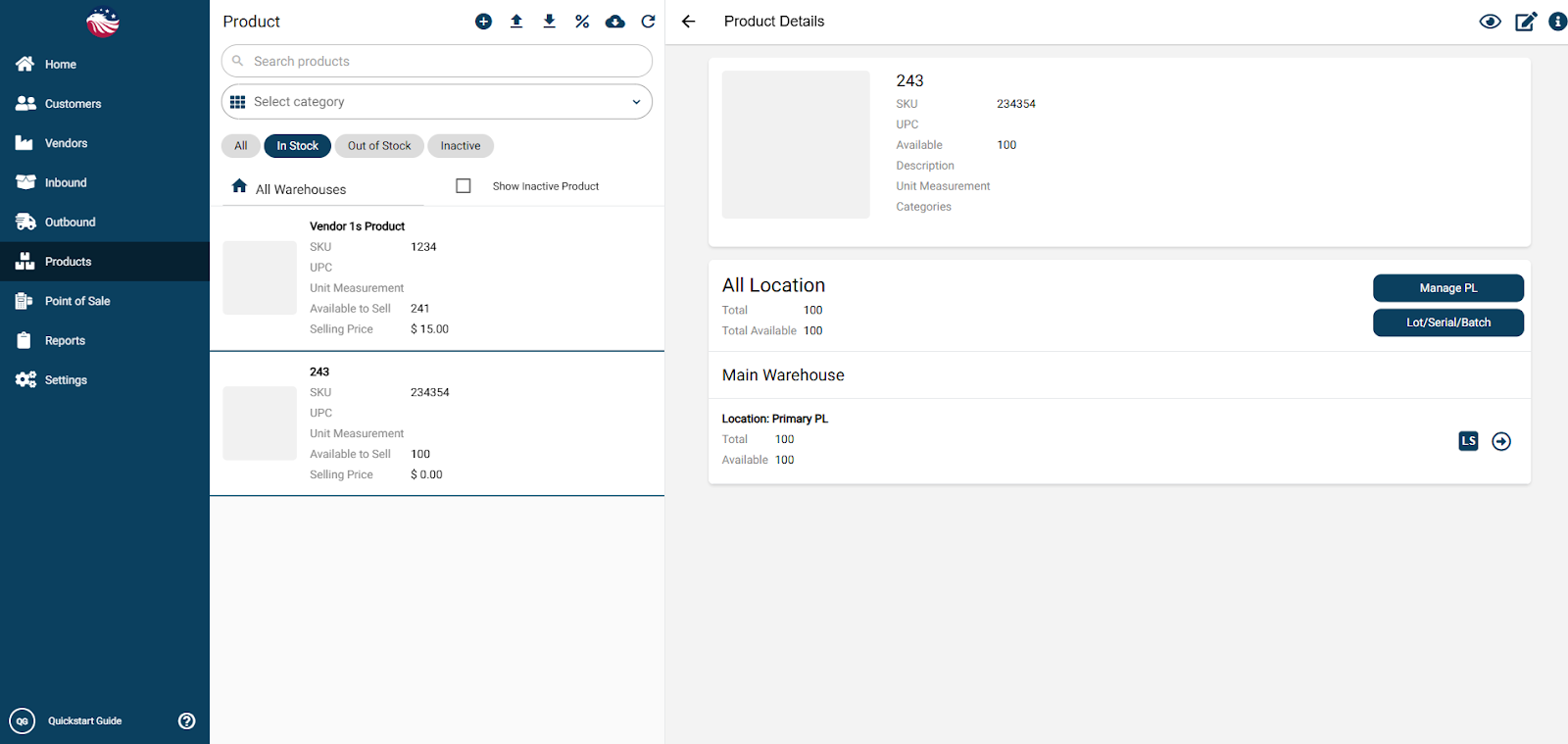
Select the Warehouse where the inventory is currently located.
Click the LS Button above the warehouse.
Note: LS stands for Lot & Serial.
Enter the Details:
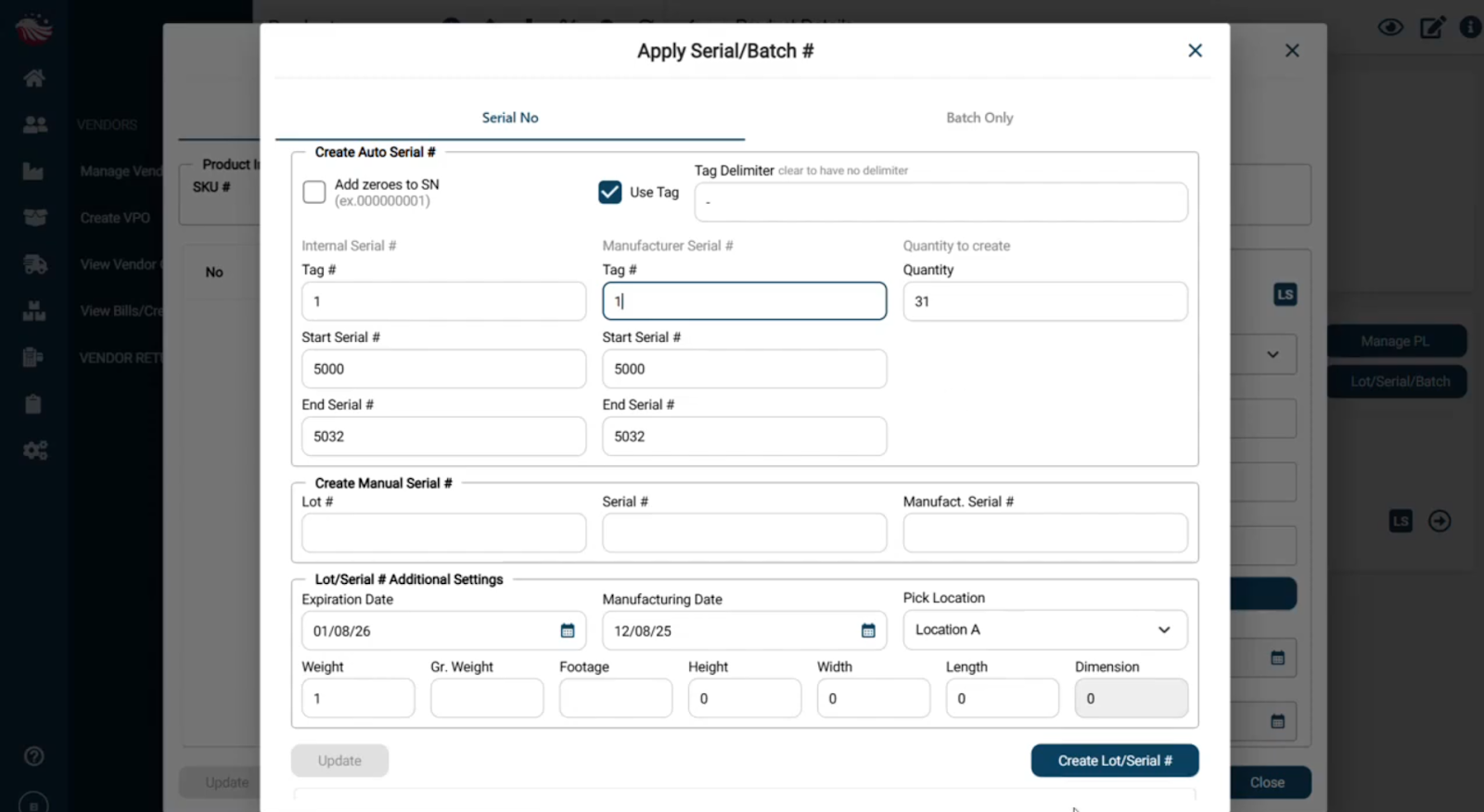
Lot Number: Enter your lot code.
Starting Serial Number: e.g., 5000.
Ending Serial Number: e.g., 5101.
You want to include all the stock you currently have, so if you have 100 stock you do 5000 - 5001
Tag Number: Enter a tag (e.g., 1).
Click Create Lot/Serial #.
The system generates the full list based on your range. You can see them all by clicking the two < > to navigate to other pages in the list.
Finalize: Click the Check Box in the column header to select all numbers, then hit Confirm & Apply.
Tip: You can verify they exist by clicking the View Lot Serial Number button.
To view the Lot/Serial/Batch numbers, you can click on the LS button.