Step 1: Initiate the Return
Go to Customers > Customer Returns > Create Return by Invoice.
Select the Invoice: Choose from the list or search by PO/Invoice number.
Select Items: Check the box for the product being returned.
Note: You cannot return more than the quantity originally ordered.
Click Issue New Customer Return.
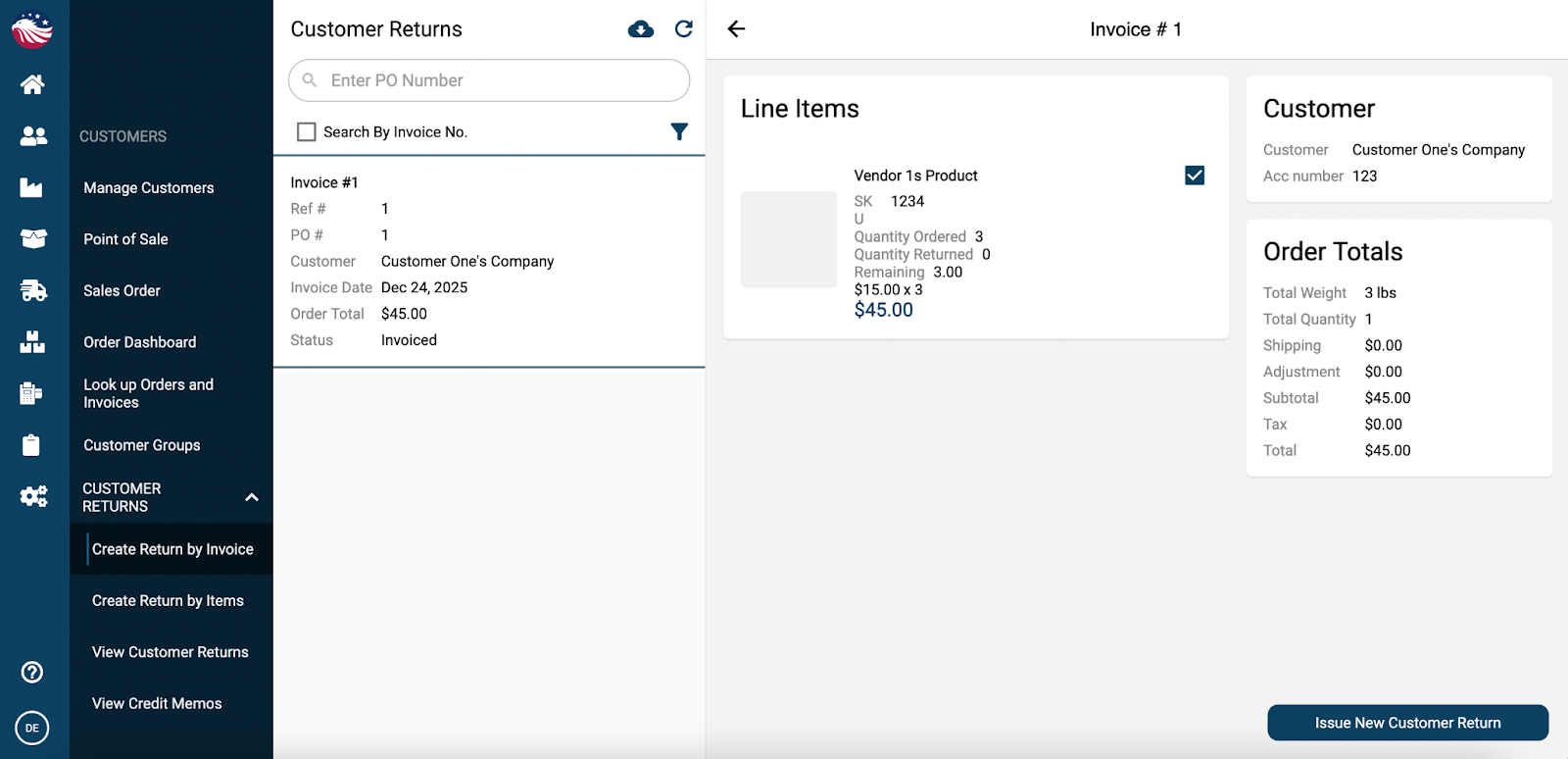
You will now see the screen below and are able to fill in a number of fields
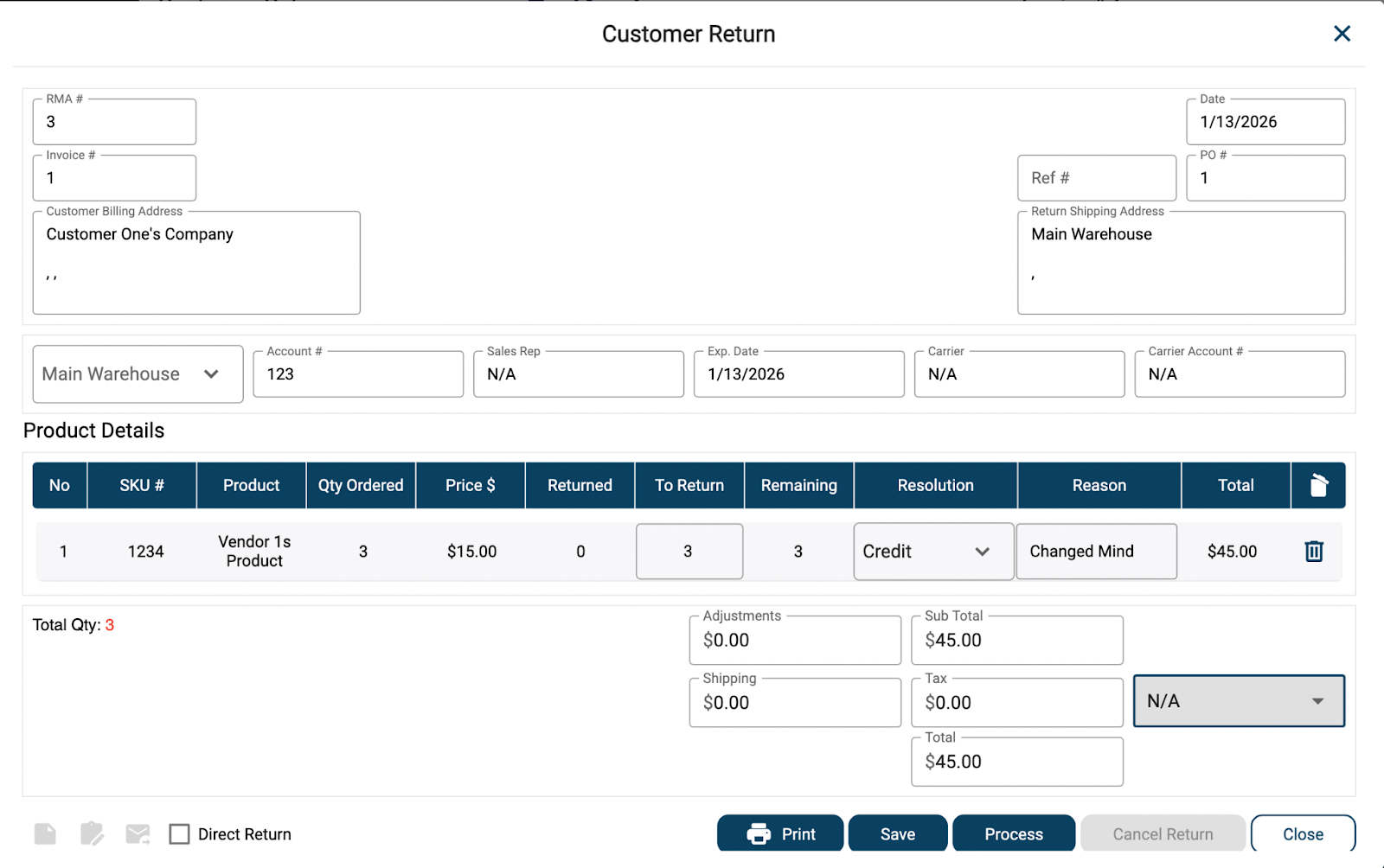
Reason: Select why they are returning it (e.g., "Defective," "Changed Mind").
Resolution: Choose Credit (give money back) or Replacement (send a new item).
The Fork in the Road: Choose your Return Type.
Direct Return: Check this box if the item has already been handled (e.g., destroyed) and skip the warehouse receiving process. Hit Process to finish immediately.
Regular Return (Unchecked): Leave this unchecked if the item is physically coming back to your dock and needs to be received. Hit Process.
Bird’s Eye View: "Regular" Returns. If you did not check "Direct Return," the system expects the physical item to arrive at your warehouse. It will now sit in your Inbound queue waiting for your team to receive it.