Step 1: Create the Vendor Return
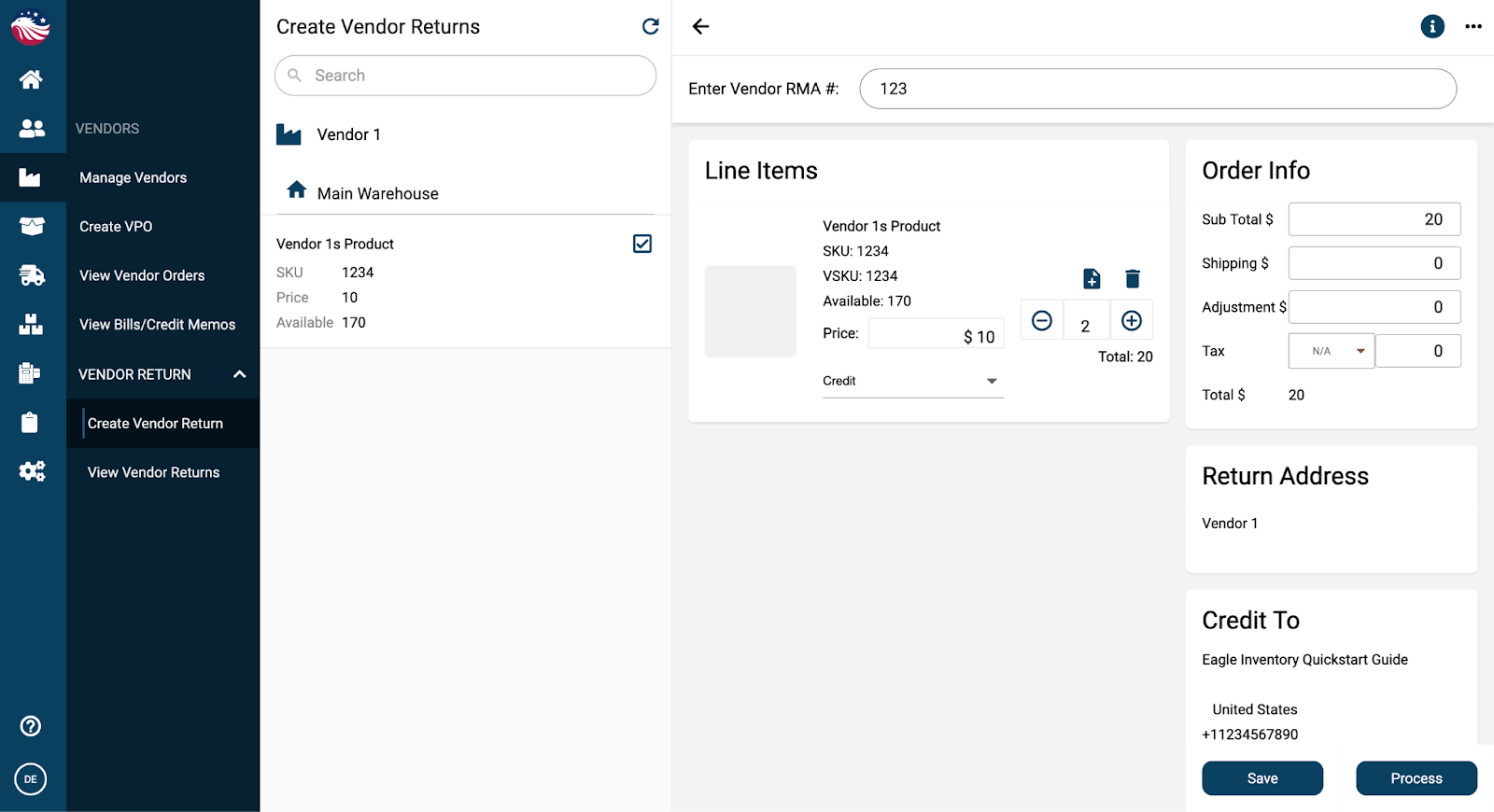
Go to Vendors > Vendor Return > Create Vendor Return.
Select Vendor: Choose who you bought it from.
Select Products: Choose the items from your purchase history.
Enter Details:
Quantity: How many are you sending back?
Vendor RMA #: Enter the vendor's Return Merchandise Authorization (RMA) number.
Click Process.
To find that return, go to Vendors > View Vendor Returns and find the vendor RMA you just put in.
Here you can select whether the return will go to credit or simply be replaced by the vendor.
Go to Outbound > Vendor Returns.
Find the RMA you added.
Enter Ship Quantity: Confirm how many are being shipped back now (e.g., 10).
Shipping Info: Enter the Shipping Method and Tracking Number (optional).
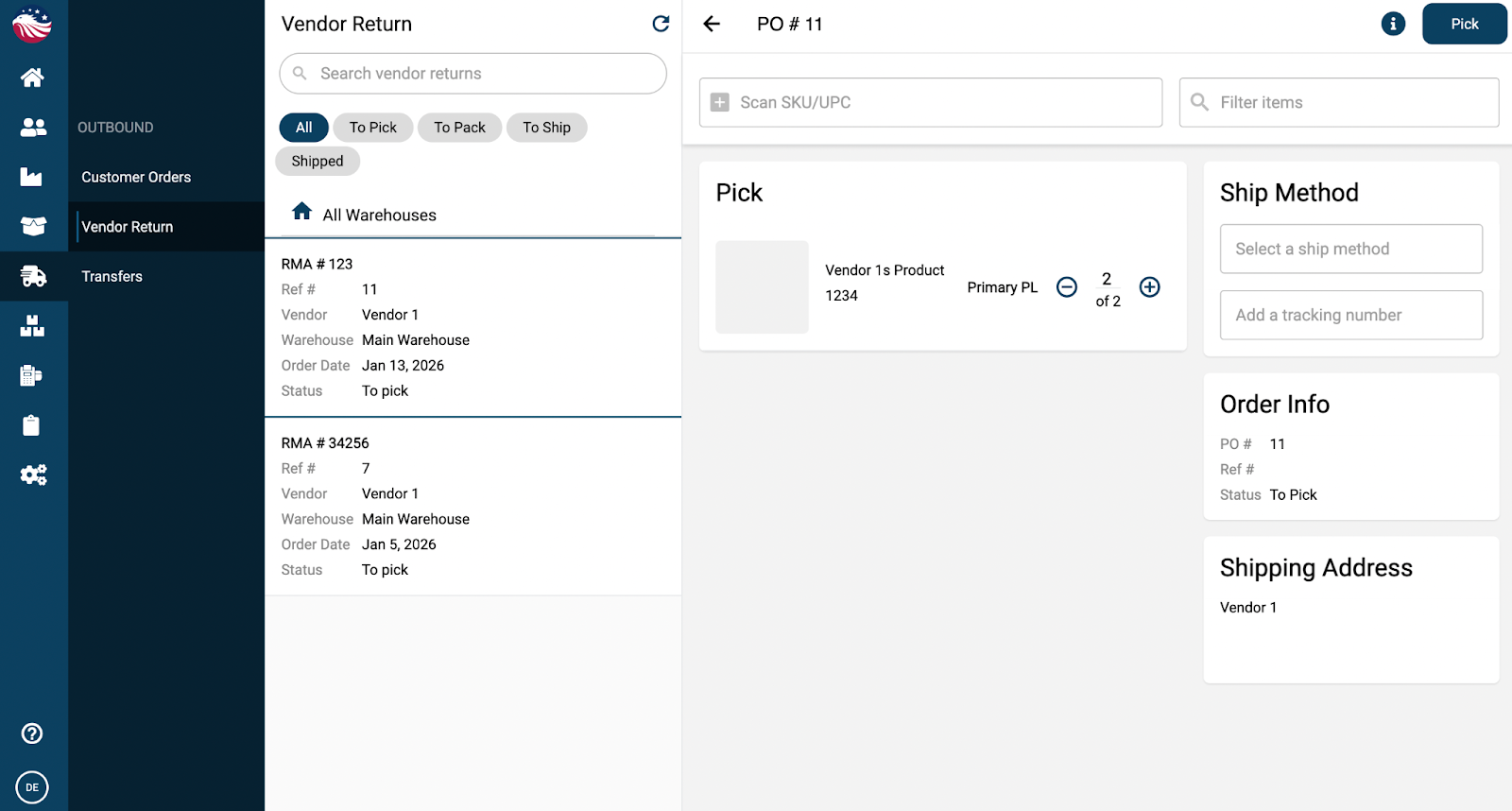
Click Pick, then Pack, then finally Ship.
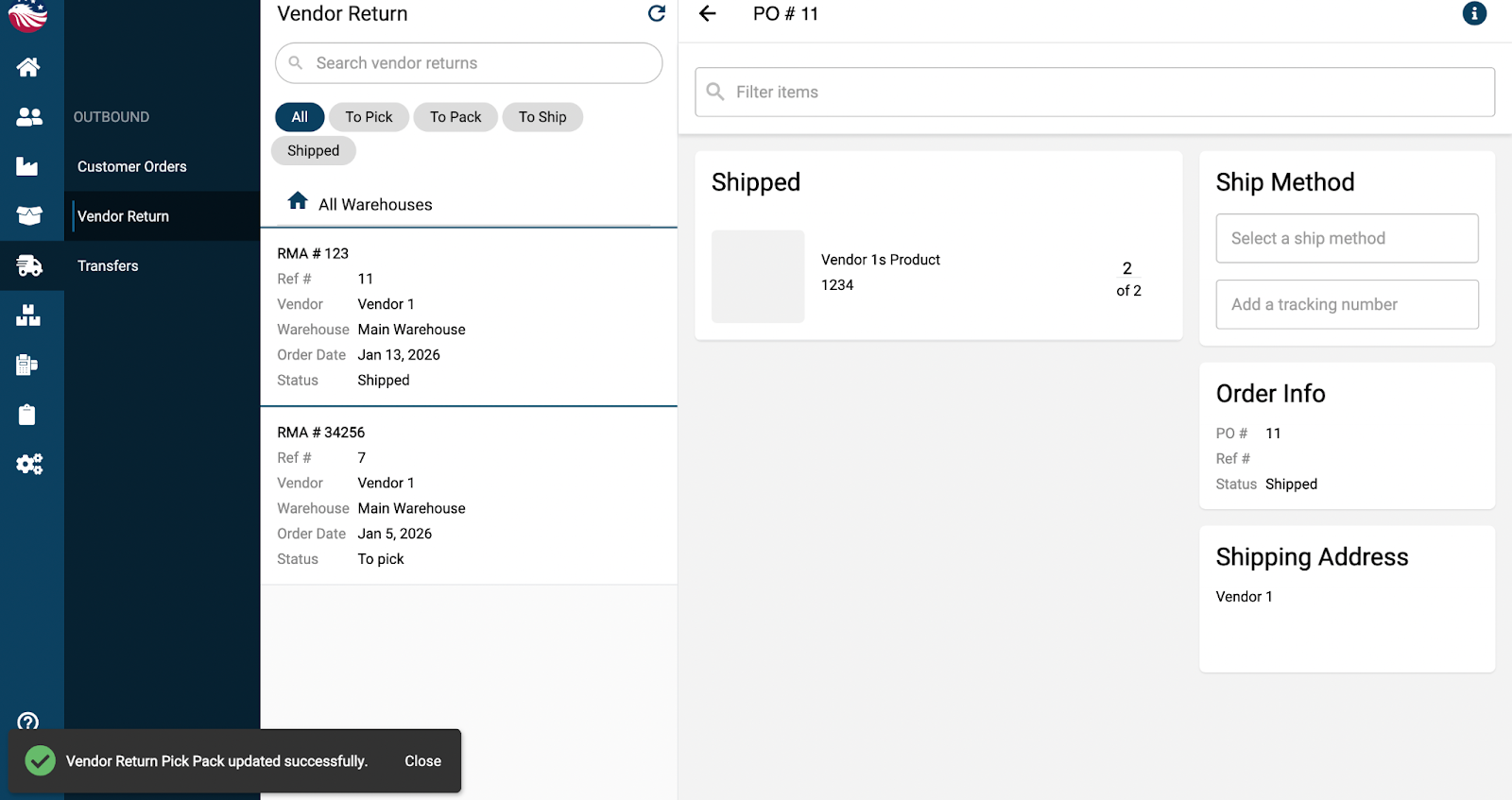
Status Update: The return is now marked as Shipped.